
Your people. The right access.
Invite team members by email, choose View or Edit for each area of your store, and approve partner access on your terms.
Create your storeEveryone with access, in one place.
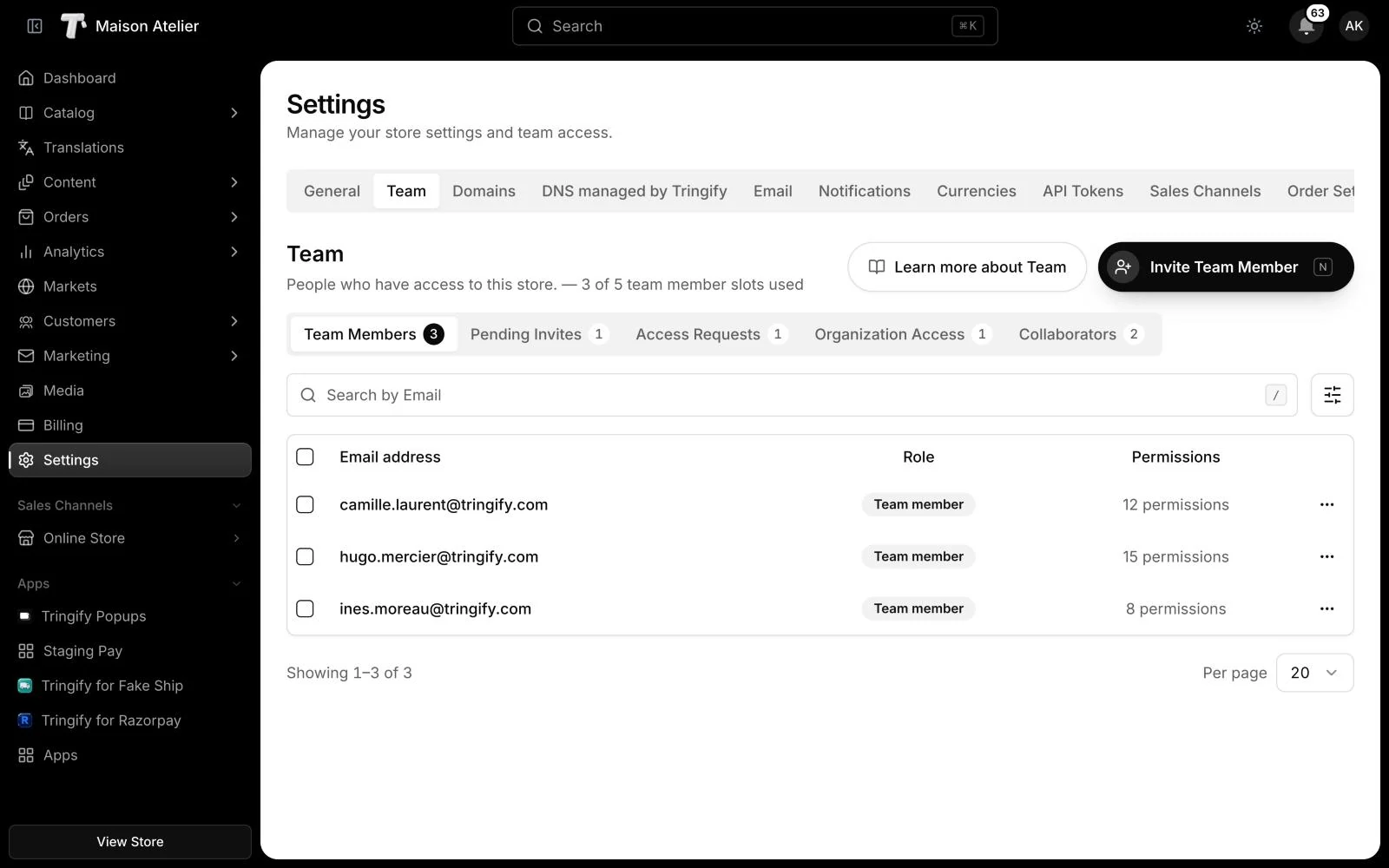
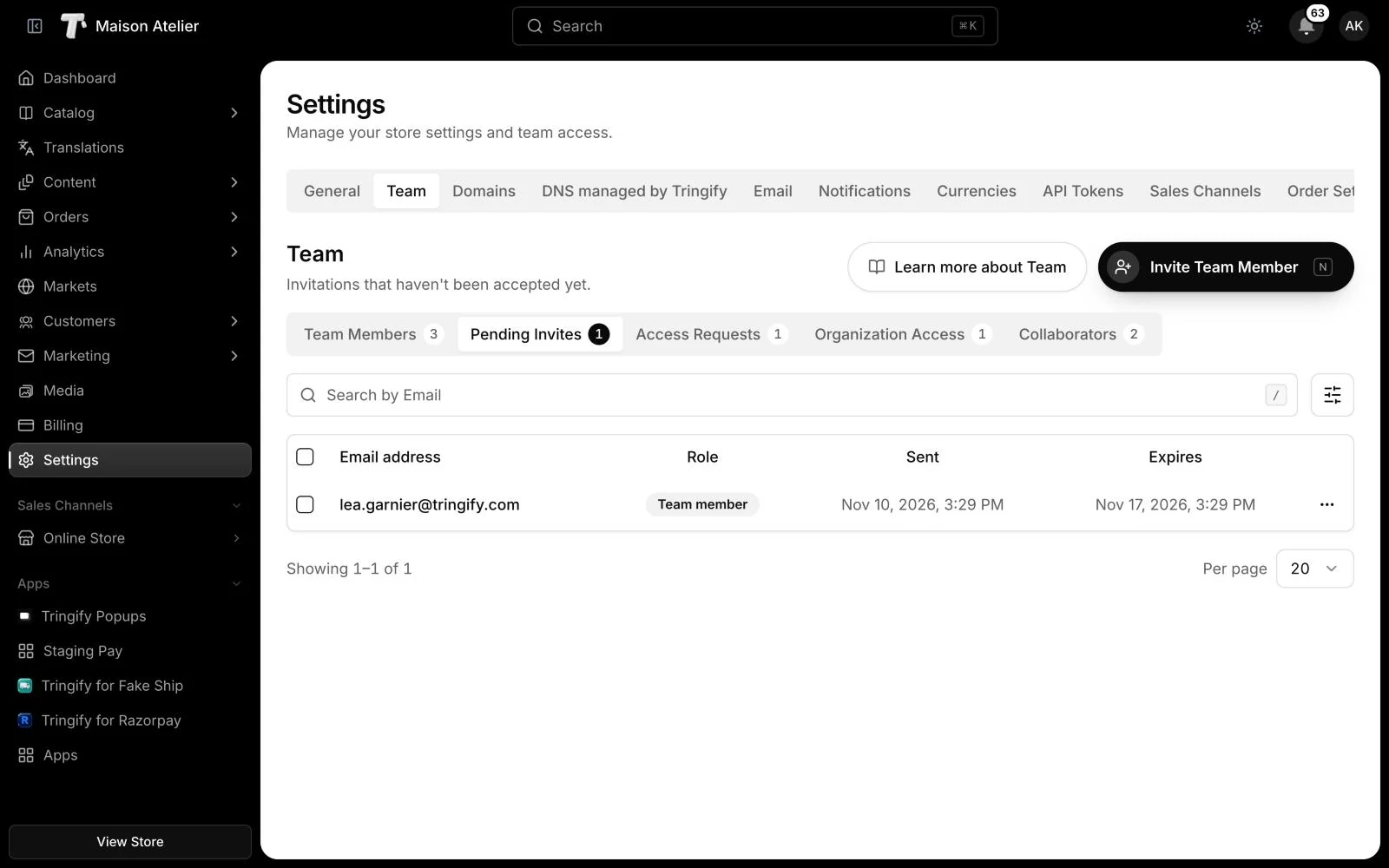
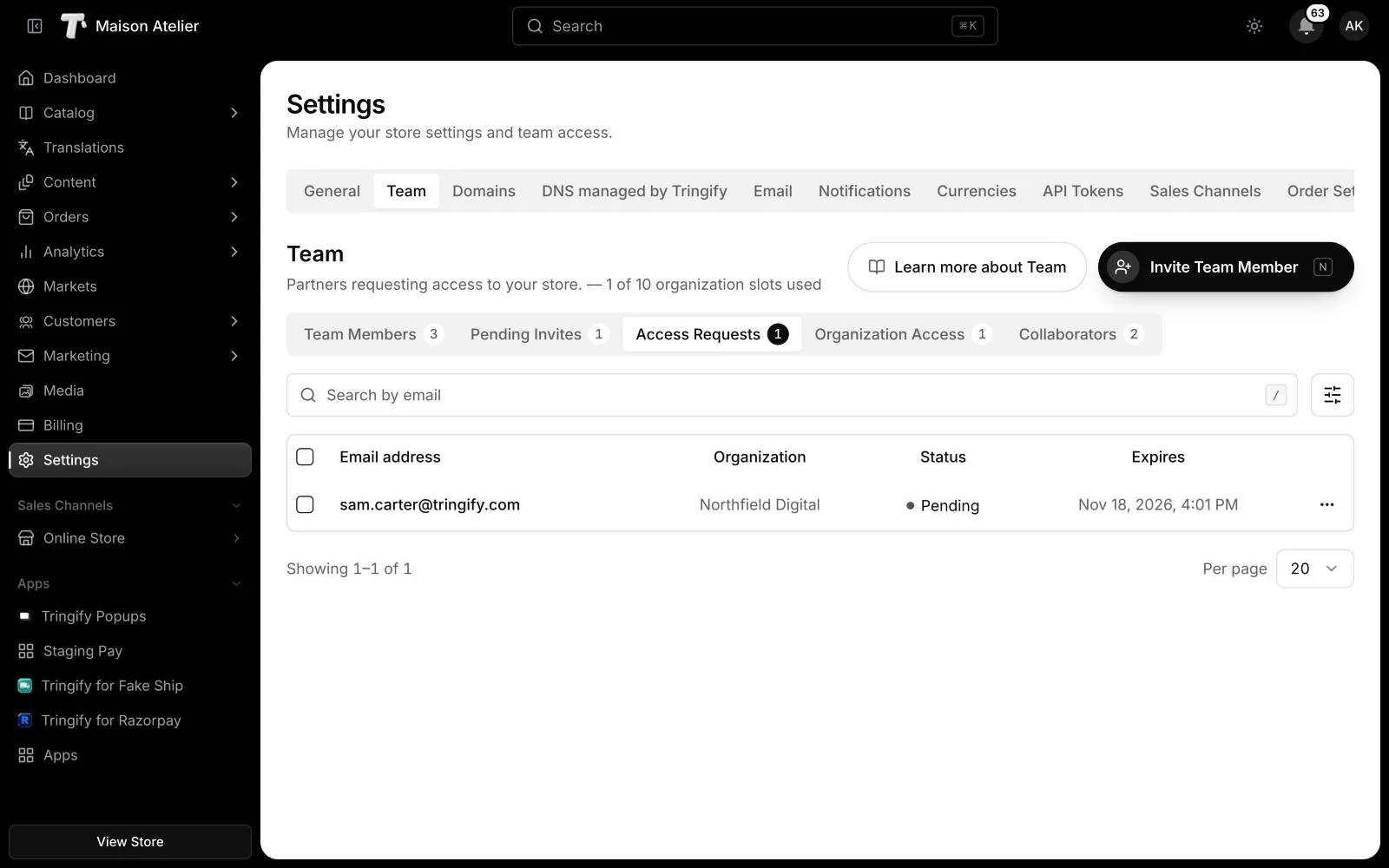
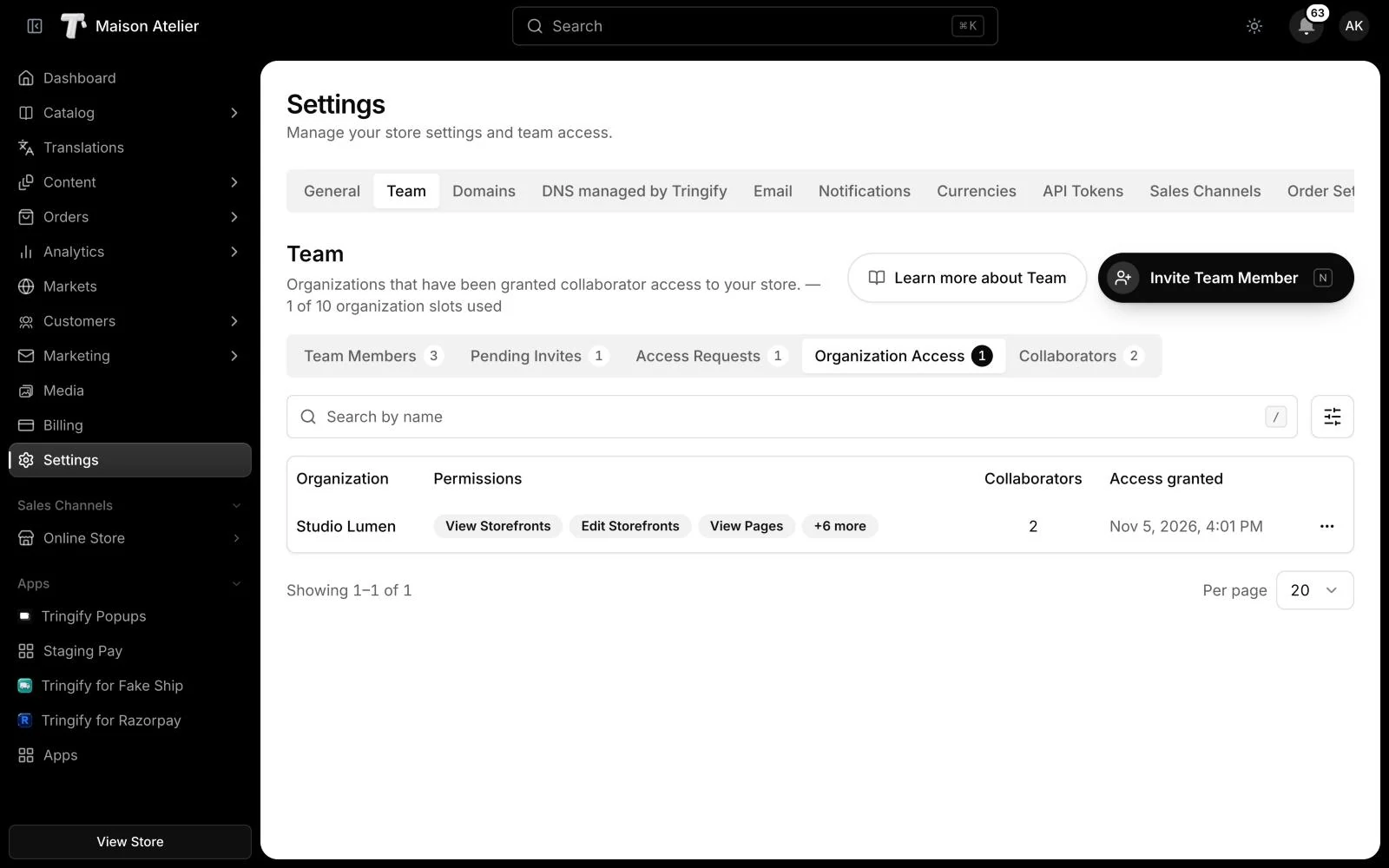
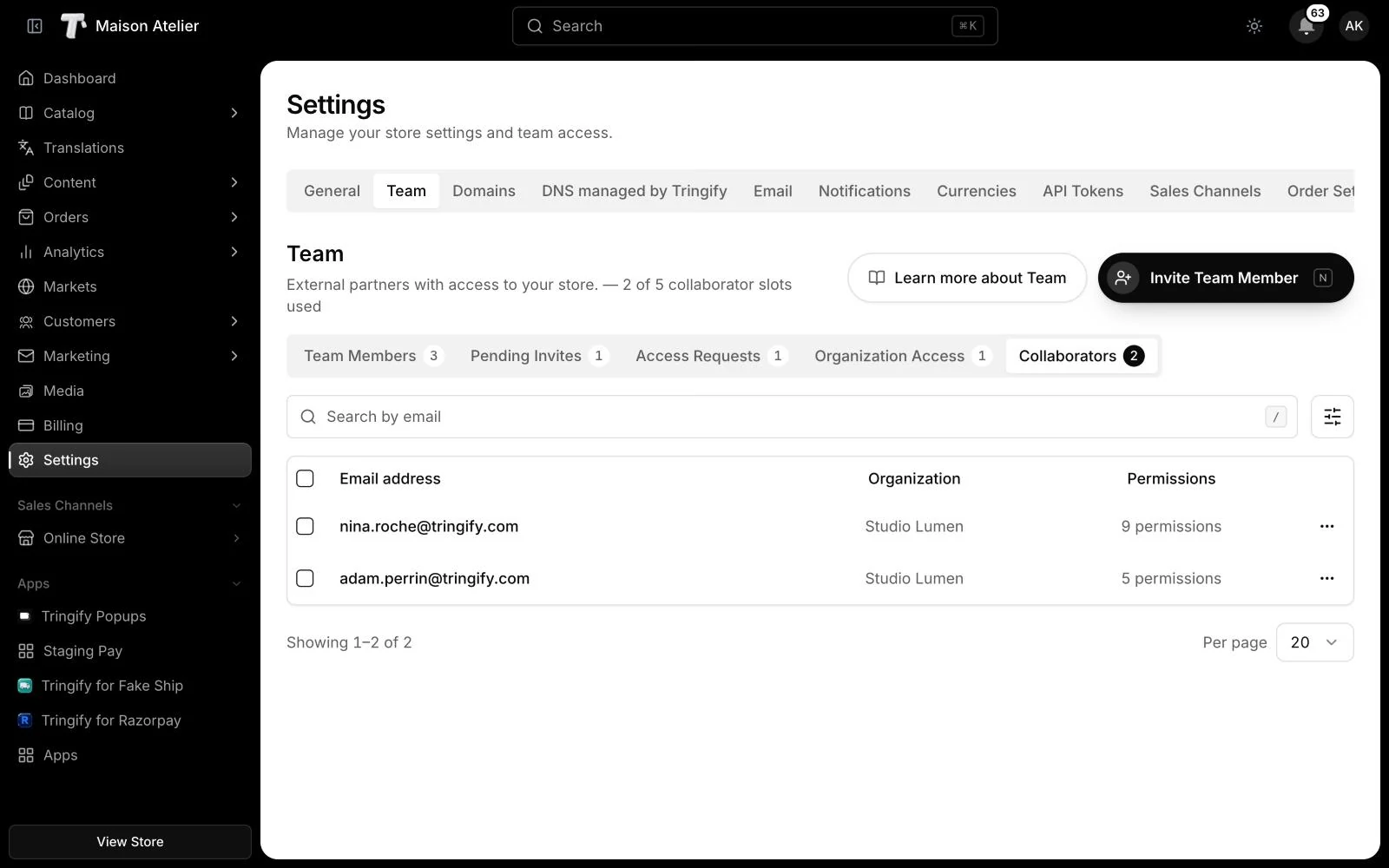
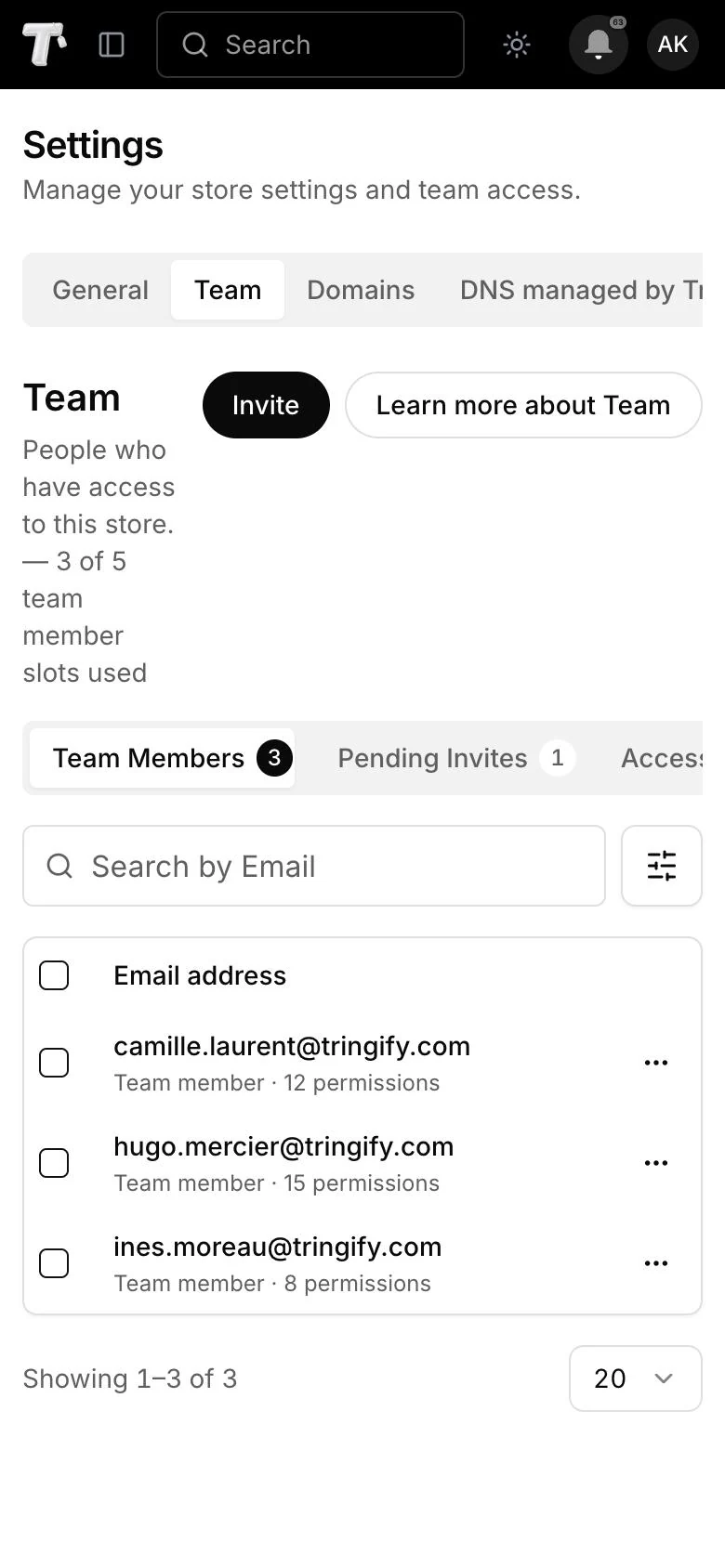
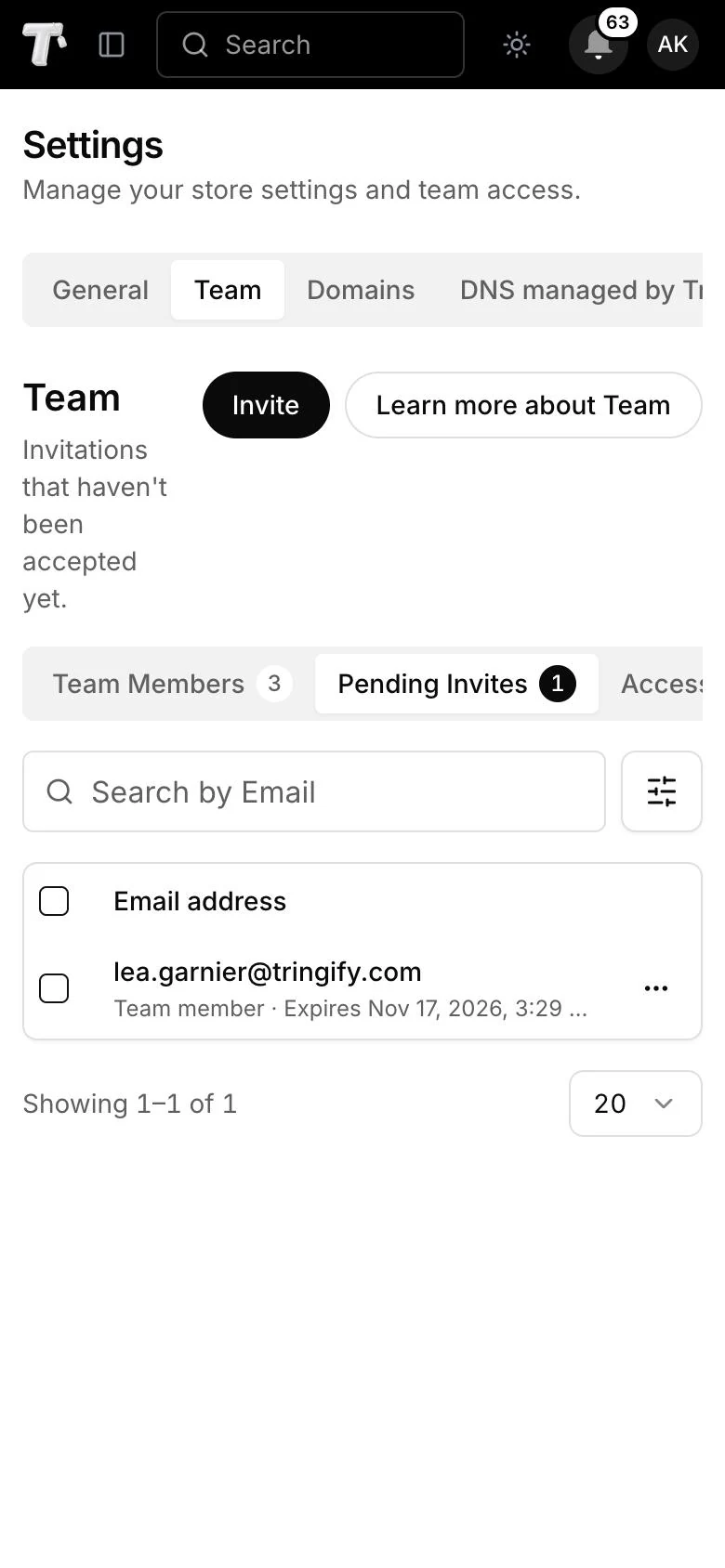
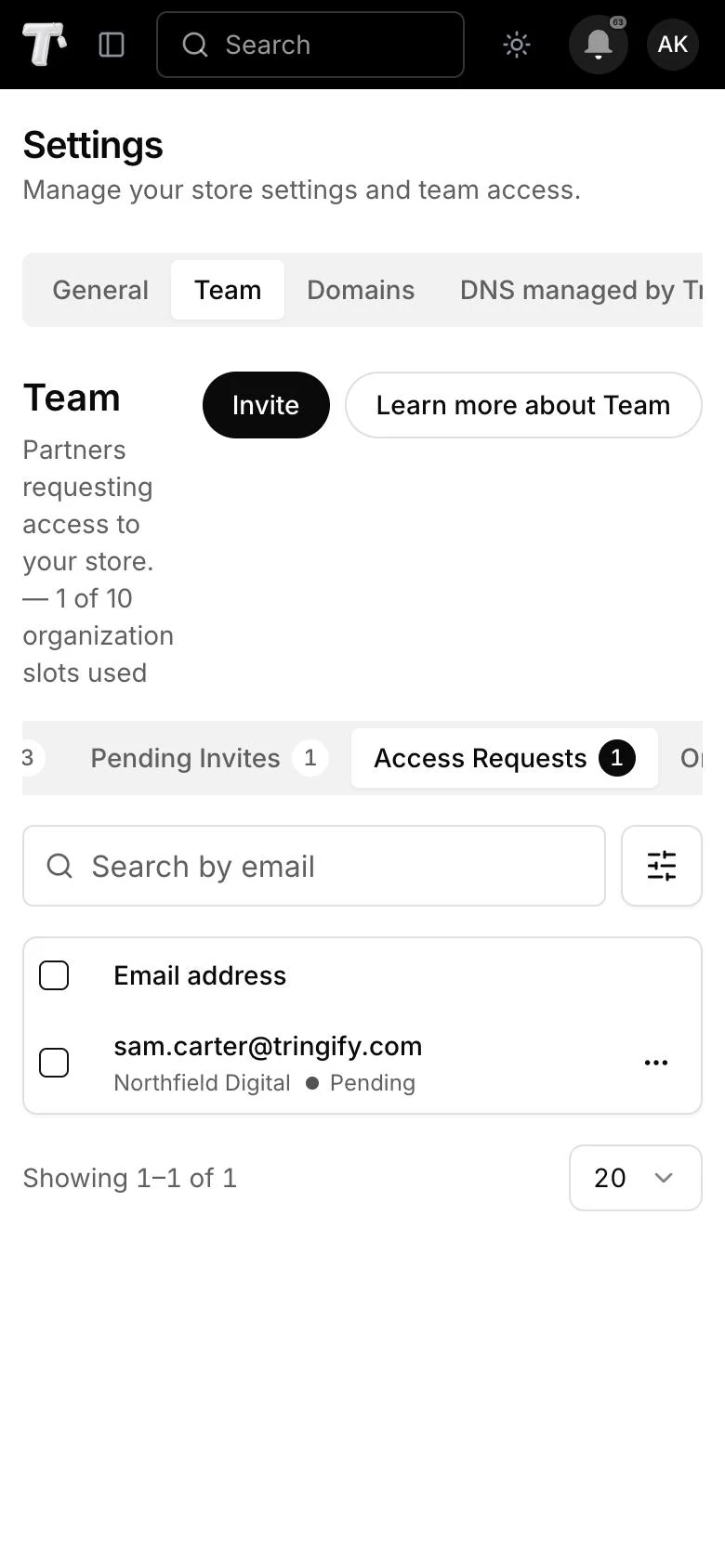
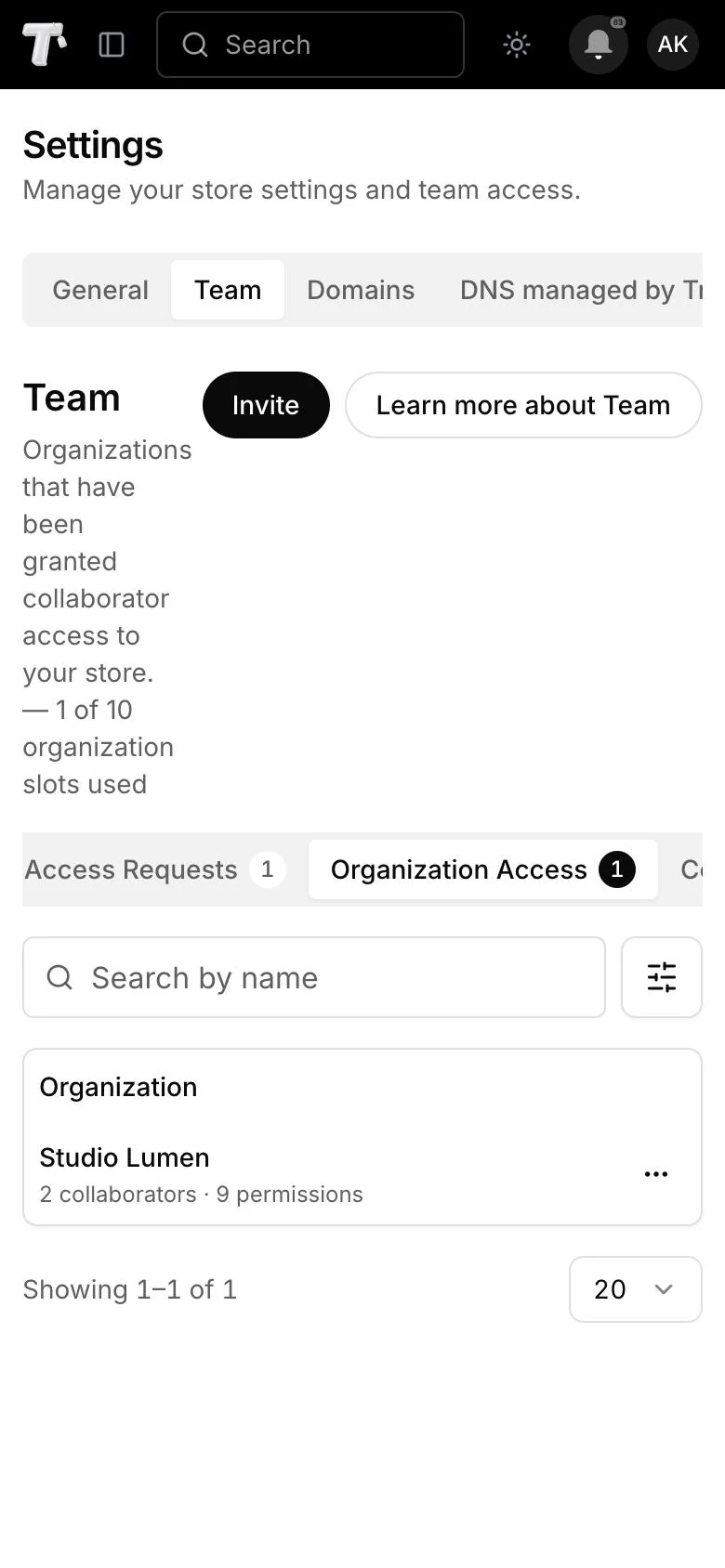
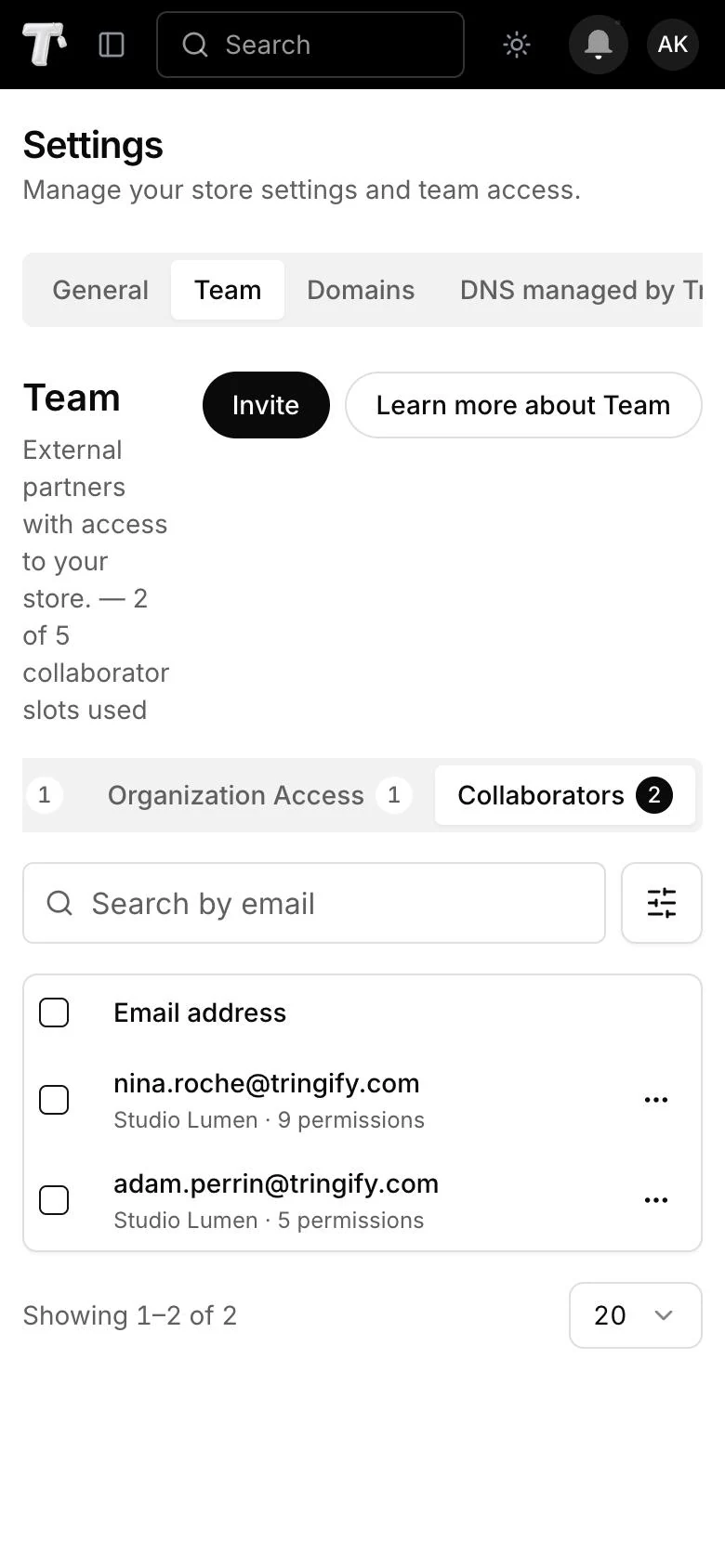
Settings › Team in Store Admin keeps your team members, pending invites, partner access requests, approved organizations and their collaborators in separate tabs.
Invite several people at once
Type or paste a list of email addresses. Everyone in one invite gets the same permissions and app access, chosen before you send it.
They see what they’re joining
The invite opens a page showing your store, their role and the permissions granted. They sign in with the invited address, or create an account there.
Invites last seven days
Resend an invite that hasn’t expired, at most every two minutes, for another seven days; the earlier link stops working. Revoke an invite to cancel it.
Your plan sets the slots
Team shows how many team member slots are in use. A pending invite holds a slot until it’s accepted, revoked or expires.
Change several people together
Search by email or filter by permission, then select team members to add permissions, replace their permissions or remove them.
Removal ends access at once
Their API tokens, app access, notification settings and app sessions for your store go too. They’re notified, and their Tringify account stays.
View or Edit, for each area of your store.
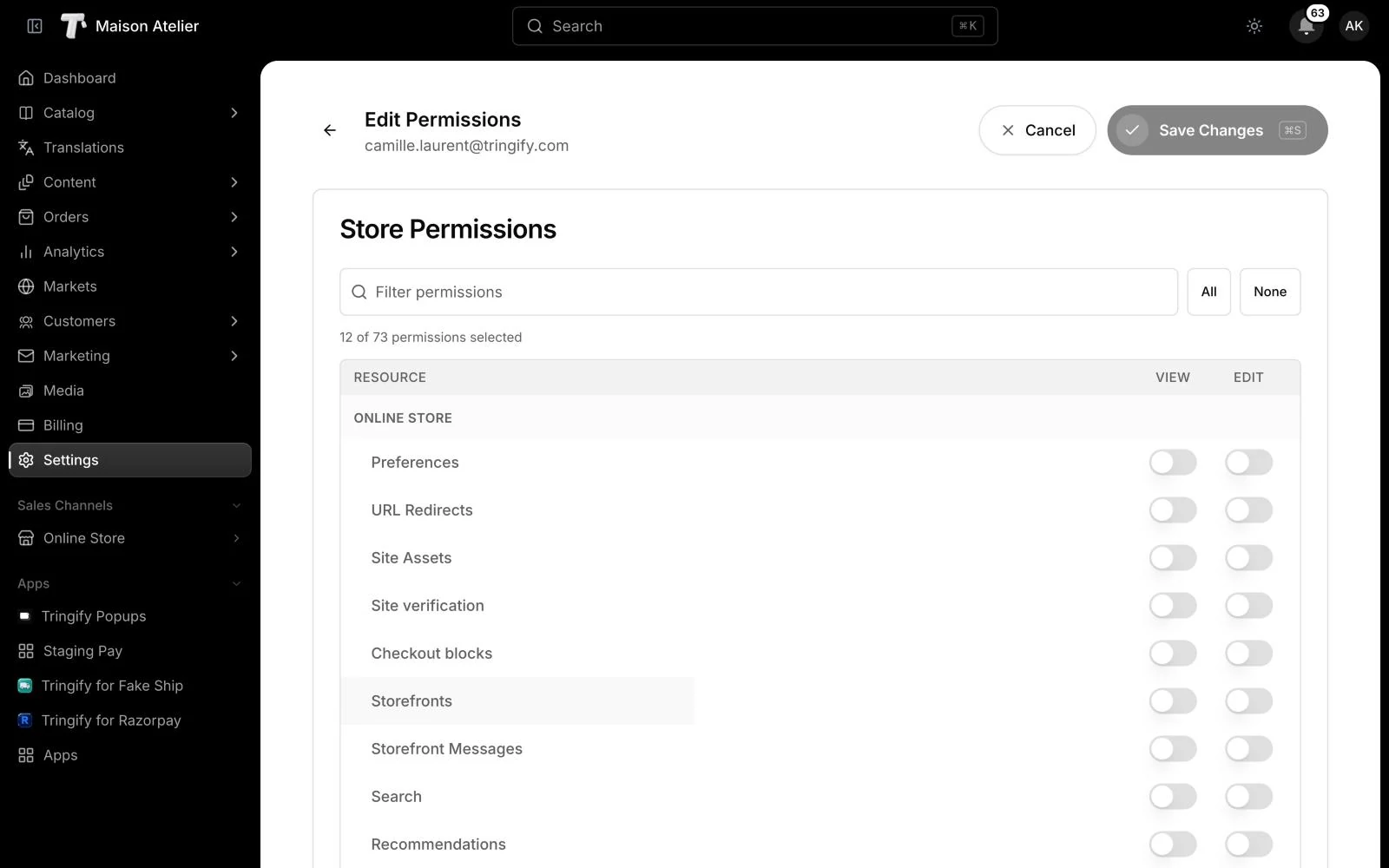
Permissions come from one catalogue of 71 for store areas such as Products, Orders, Customers and Pages, plus the Online Store, Settings, Analytics and AI Capabilities groups.
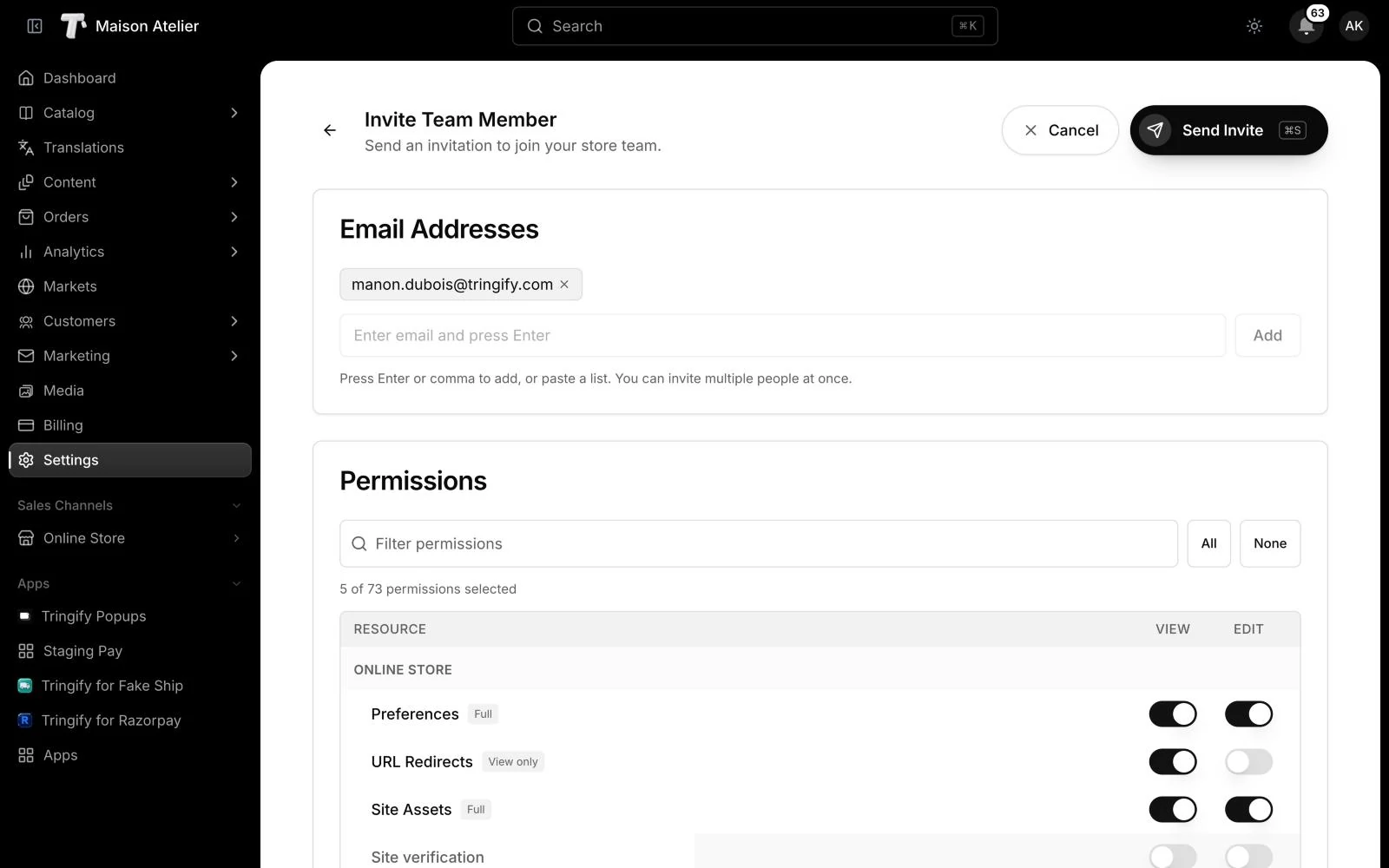
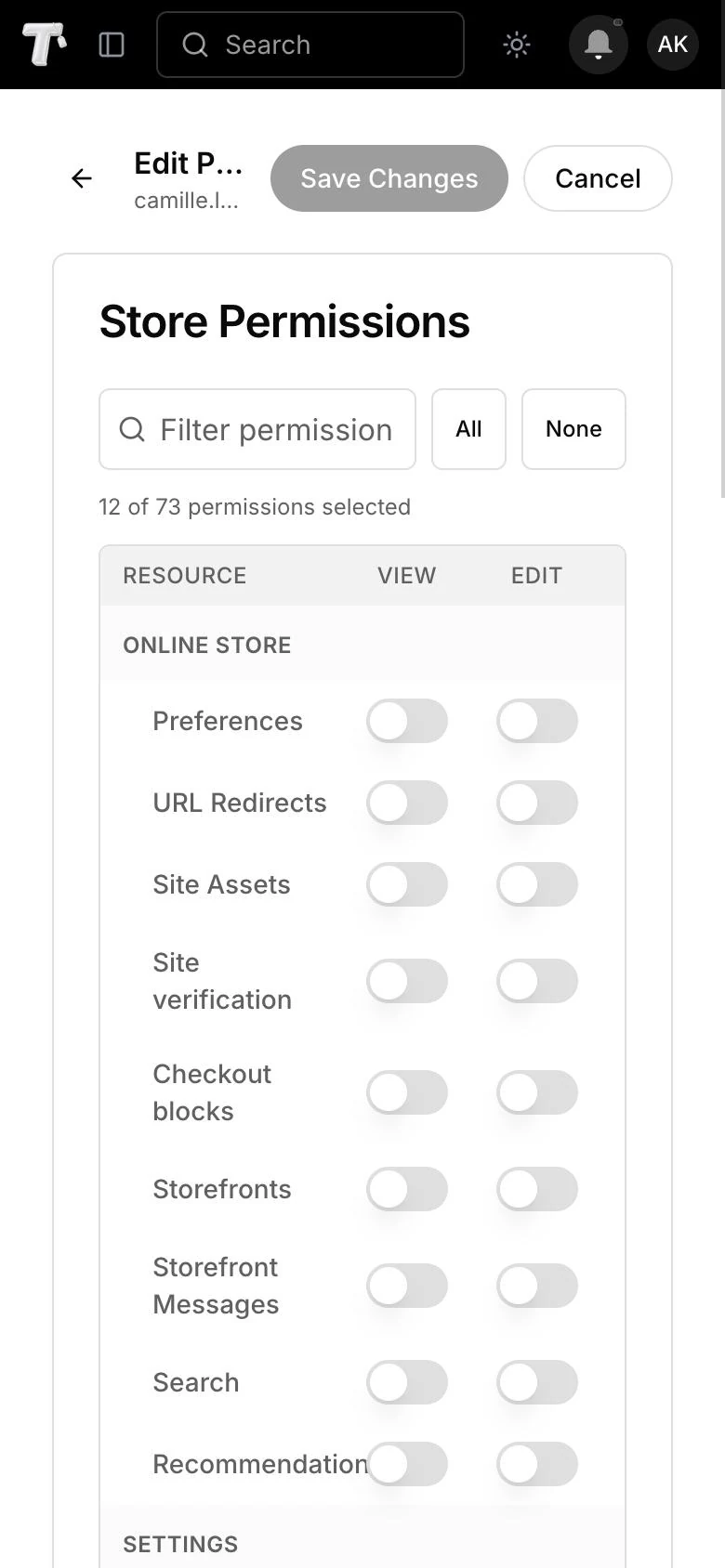
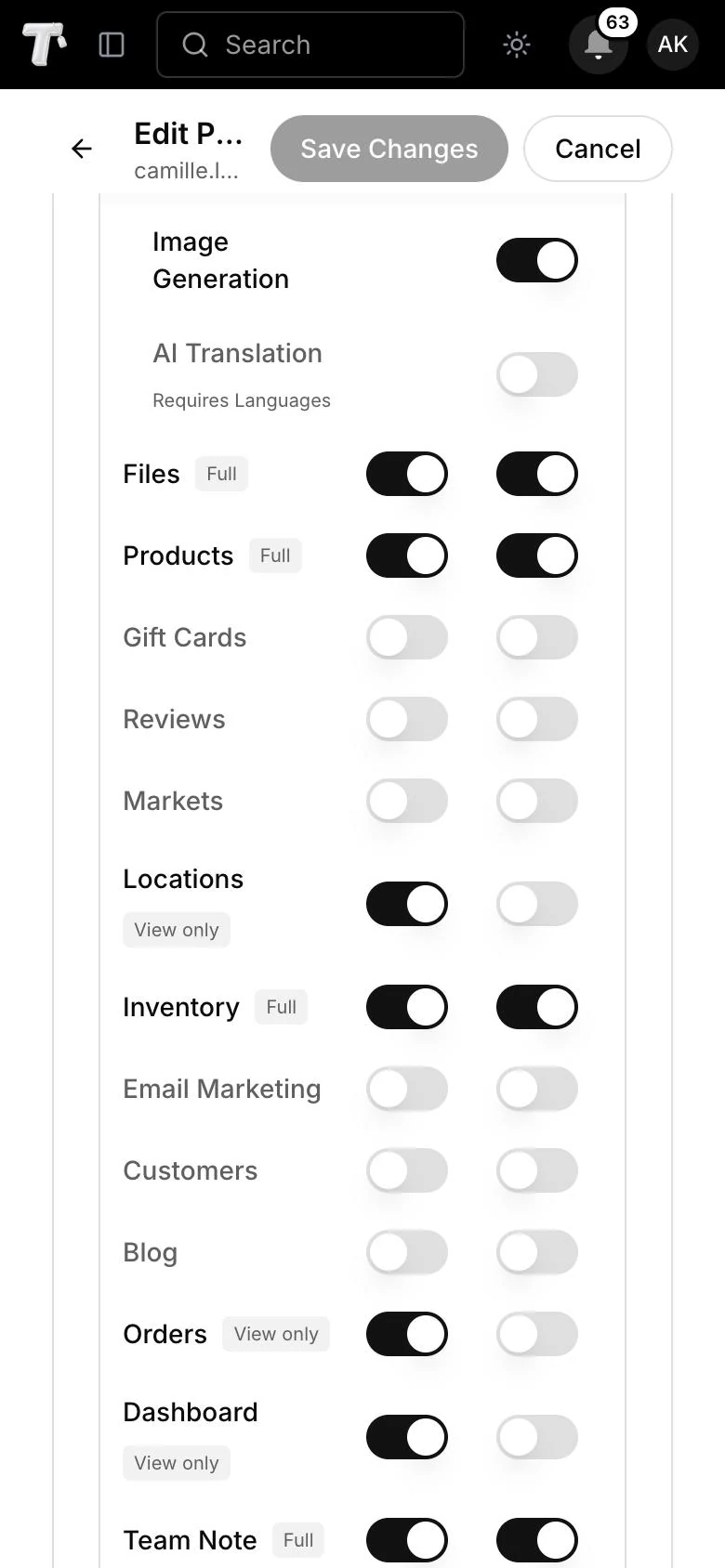
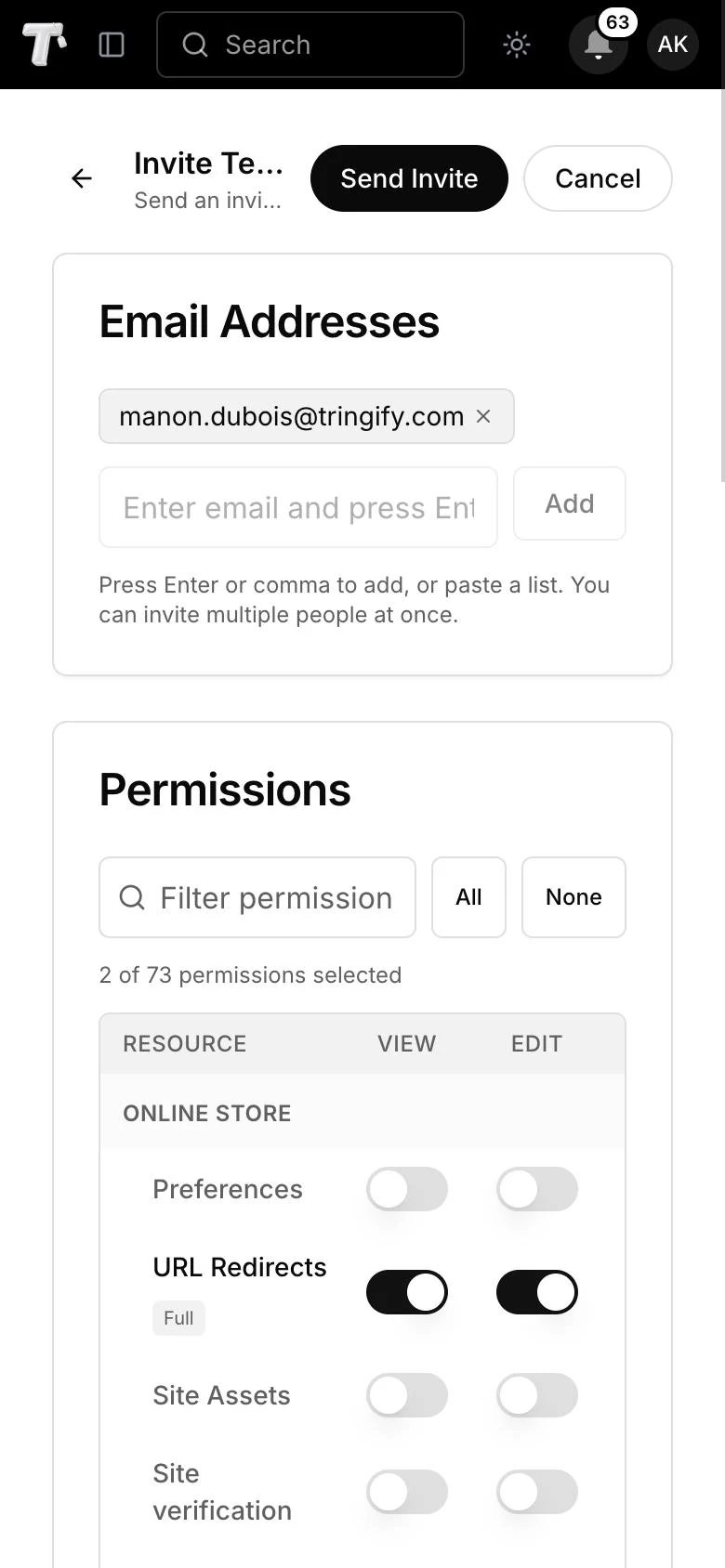
71 permissions, one list
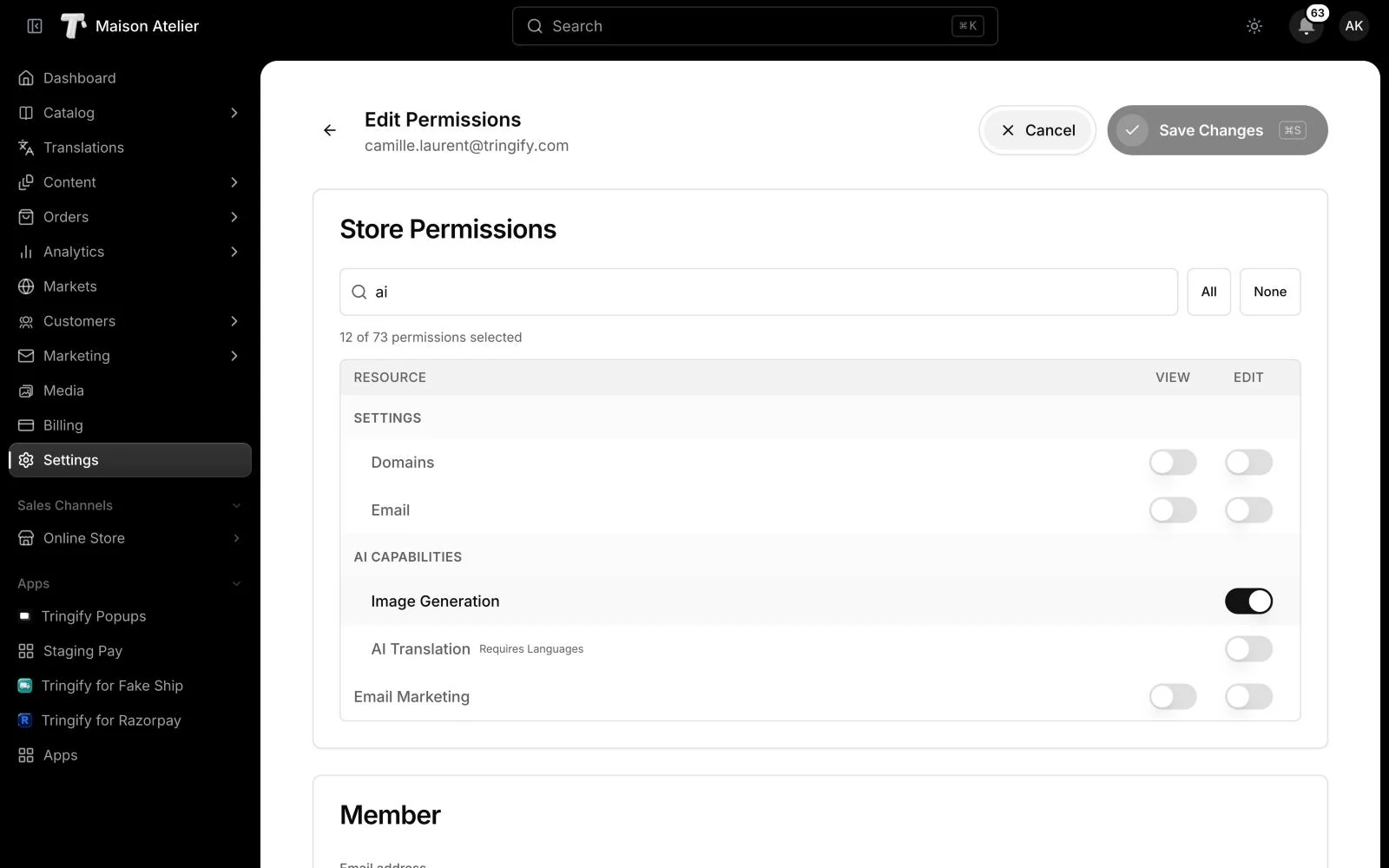
The same catalogue serves team members and partner collaborators. Search it by name, or use All and None.
Edit includes View
Turning on Edit turns on View; turning off View turns off Edit. Everyone needs at least one permission.
Some permissions need another
AI Translation in AI Capabilities needs Edit on Languages. Turning it on turns that on too, and removing Edit on Languages takes AI Translation away.
View-only and on-or-off rows
Live View has only View, because there is nothing to edit. AI Capabilities have only Edit: a member can use them or can’t.
App access per member
With View on Apps, choose All apps or Specific apps. Edit on Apps opens every app. To block apps entirely, remove View on Apps.
Partners ask. You decide.
Agencies and developers don’t get a team member invite. Their partner organization requests access from the partner portal, and you choose what to grant.
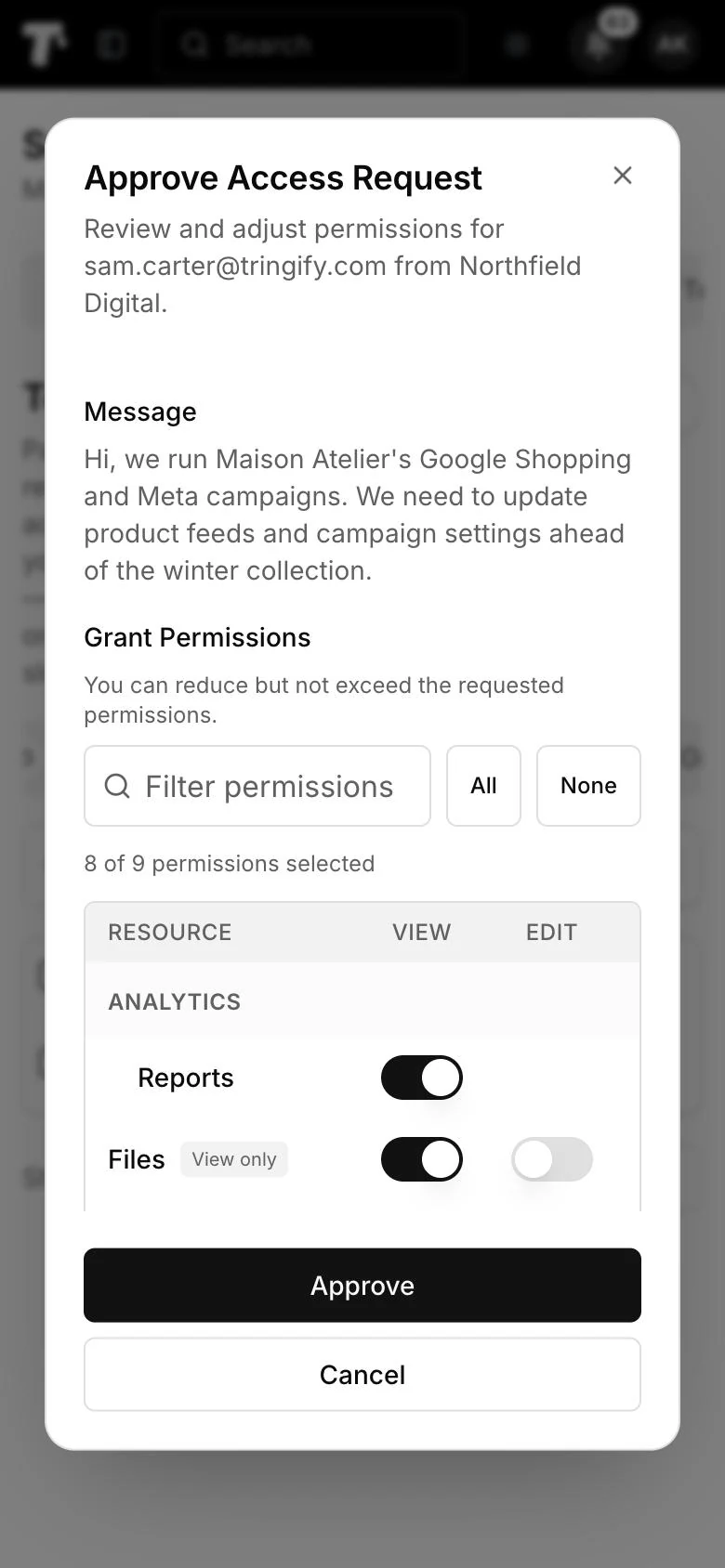
Requests arrive in Access Requests
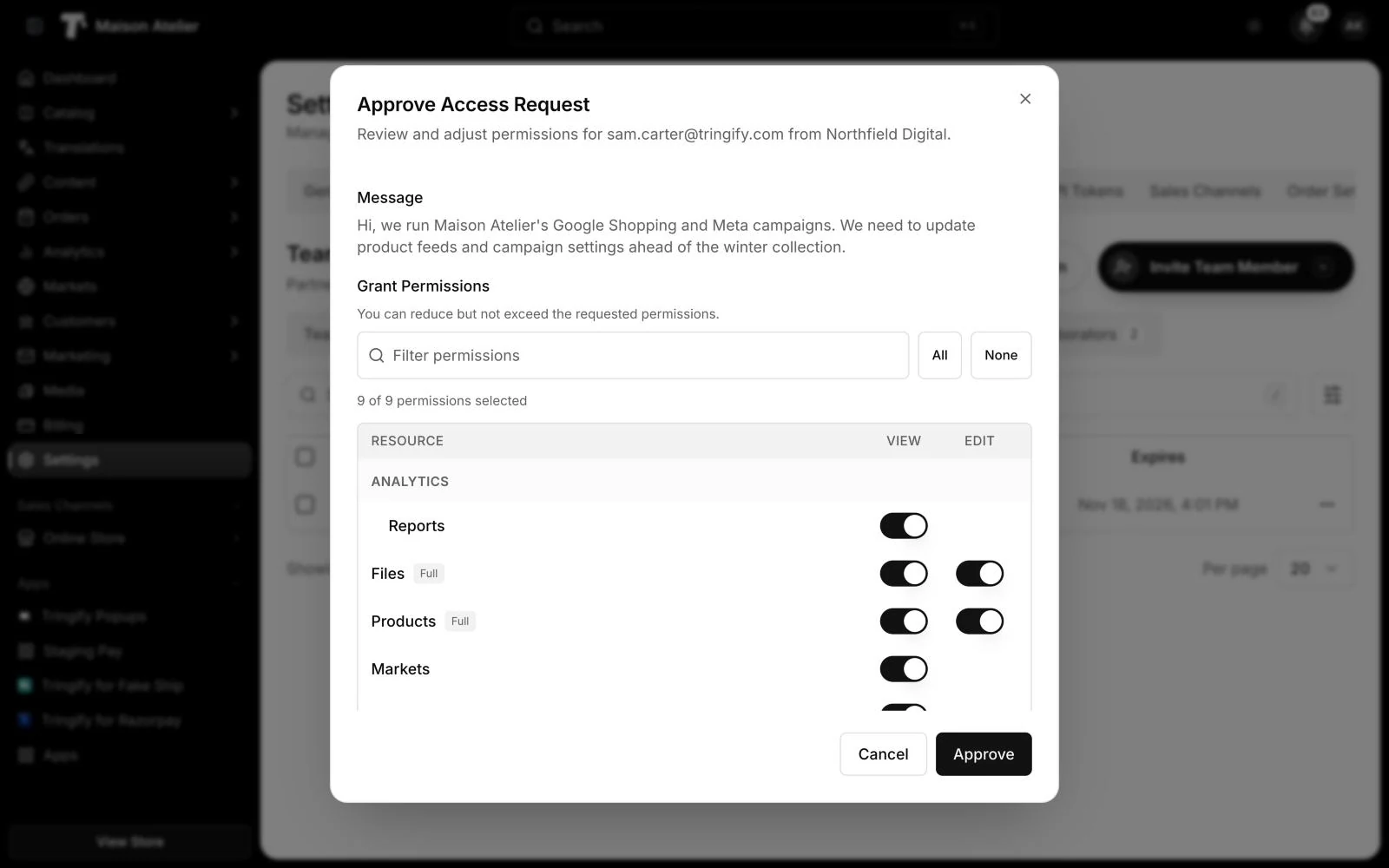
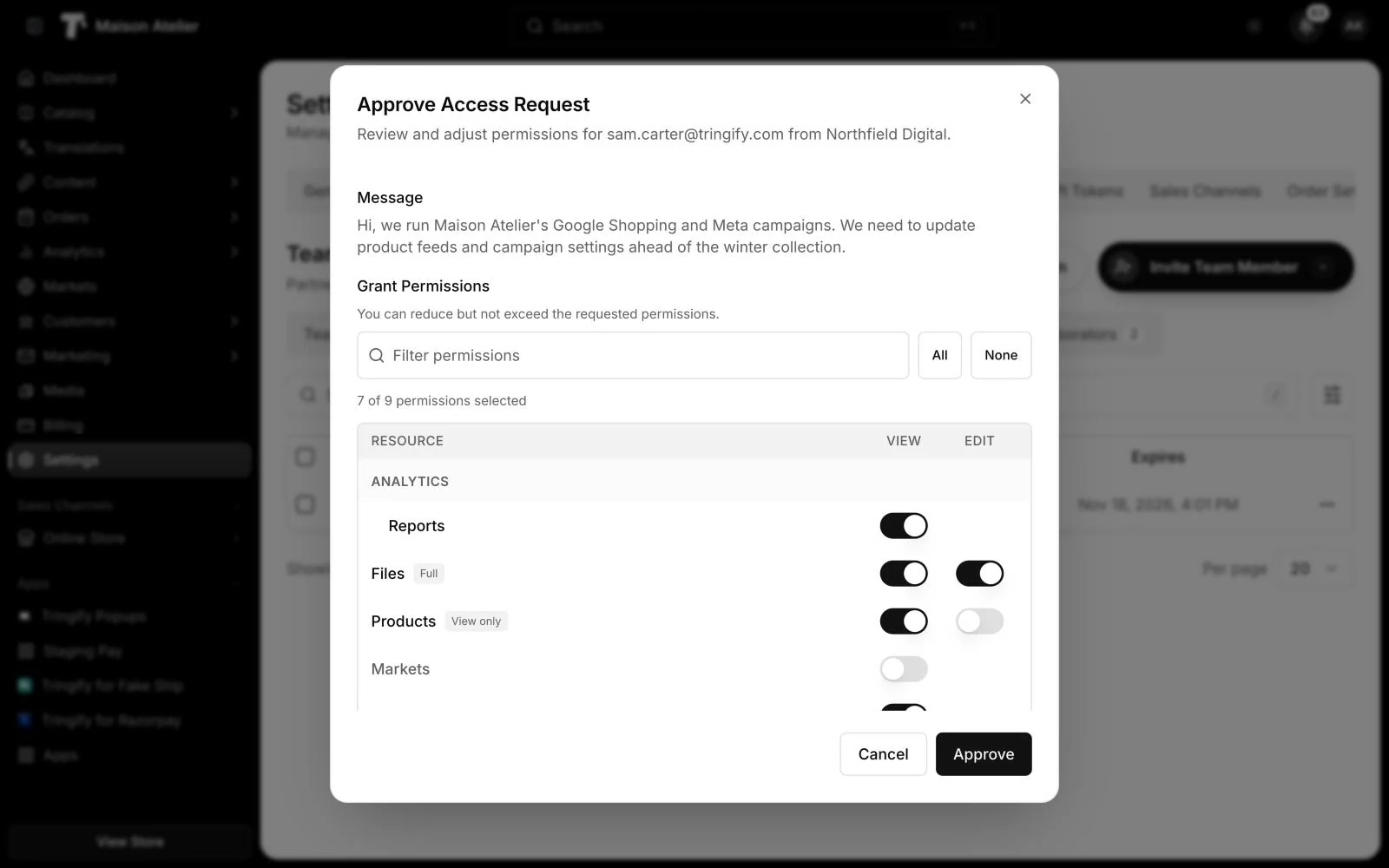
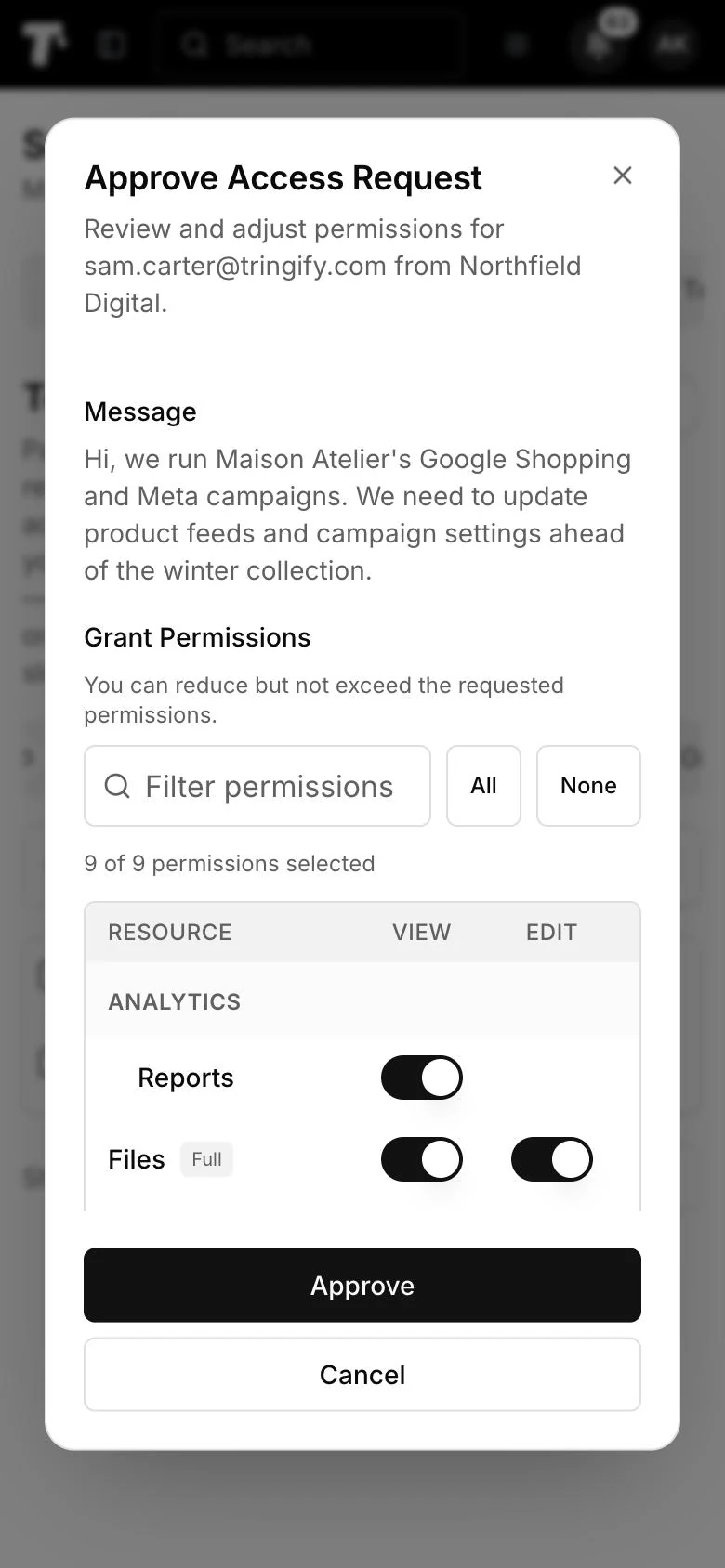
Each shows the organization, the person who asked, their message and the permissions requested.
Reduce, never exceed
When you approve, you can turn requested permissions off but not add new ones. You can also reject a request, with an optional reason that’s emailed to them.
The organization chooses its people
Approval gives the organization access but adds no one. Its owner assigns people in the partner portal, and they appear under Collaborators.
The organization’s grant is the ceiling
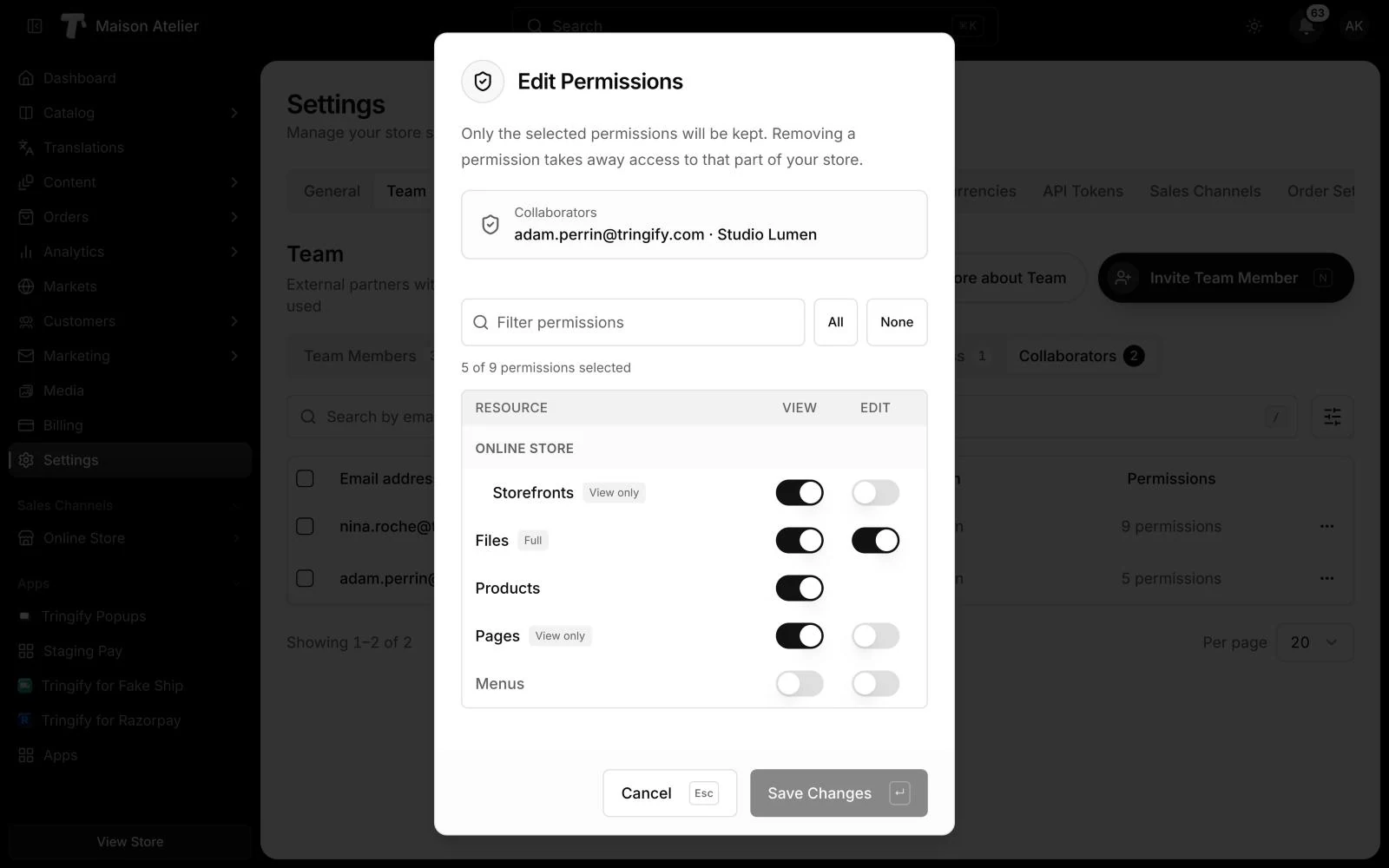
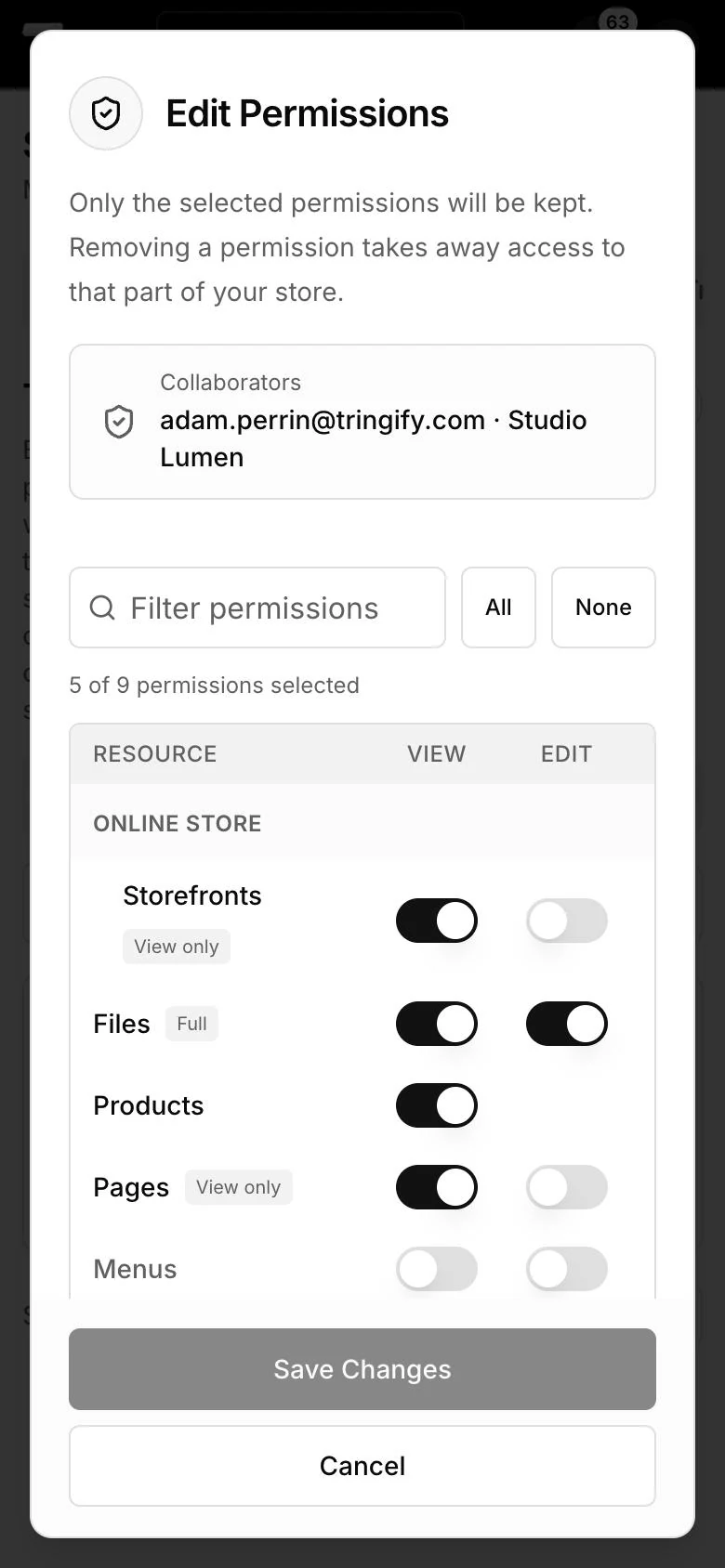
Each collaborator can hold only permissions the organization was granted. Reduce the organization’s permissions and its collaborators lose them too.
Adjust collaborators one by one
Change an individual collaborator’s permissions within that ceiling, or several at once, from Collaborators.
Permission change requests
An organization can ask to change its access. You see what would be added, kept and removed before you approve.
Requests expire after seven days
Unreviewed requests lapse. Approve or reject several at once when they pile up.
Remove partner access cleanly
Remove collaborators individually or together. You can revoke an organization’s access once it has no collaborators left.
Separate limits
Collaborators don’t use team member slots. Collaborators and partner organizations have their own caps per store, shown in Team.
What stays with the owner.
Team members and collaborators work inside the permissions you give them. A few things never move.
Only the owner opens Team
Team members and collaborators can’t see Team, so nobody else can invite people or change access.
The owner has full access
The store owner always holds every permission and can’t be removed from the store.
Ownership can’t be transferred
A store’s ownership can’t be handed to a team member.
Leaving a store
Team members can’t leave on their own; the owner removes them. Partner organizations and their collaborators leave from the partner portal.
Billing details stay private
Invoices, account credit and the payment method are shown only to the owner.
Access ends only when you confirm
Removing a team member or collaborator and revoking an organization ask you to confirm first, as does revoking an invite more than an hour old.
Bring your team into Tringify.
Team is available on live stores. Your plan sets the number of team member slots; collaborators and partner organizations have their own limits, shown in Store Admin.
Create your store