Menus
Navigation that fits your catalog.
Build menus from your own products, collections, pages and posts, nest them up to three levels, and choose where each one appears in your theme. Links follow your content when it's renamed.
Menus
A menu for every place
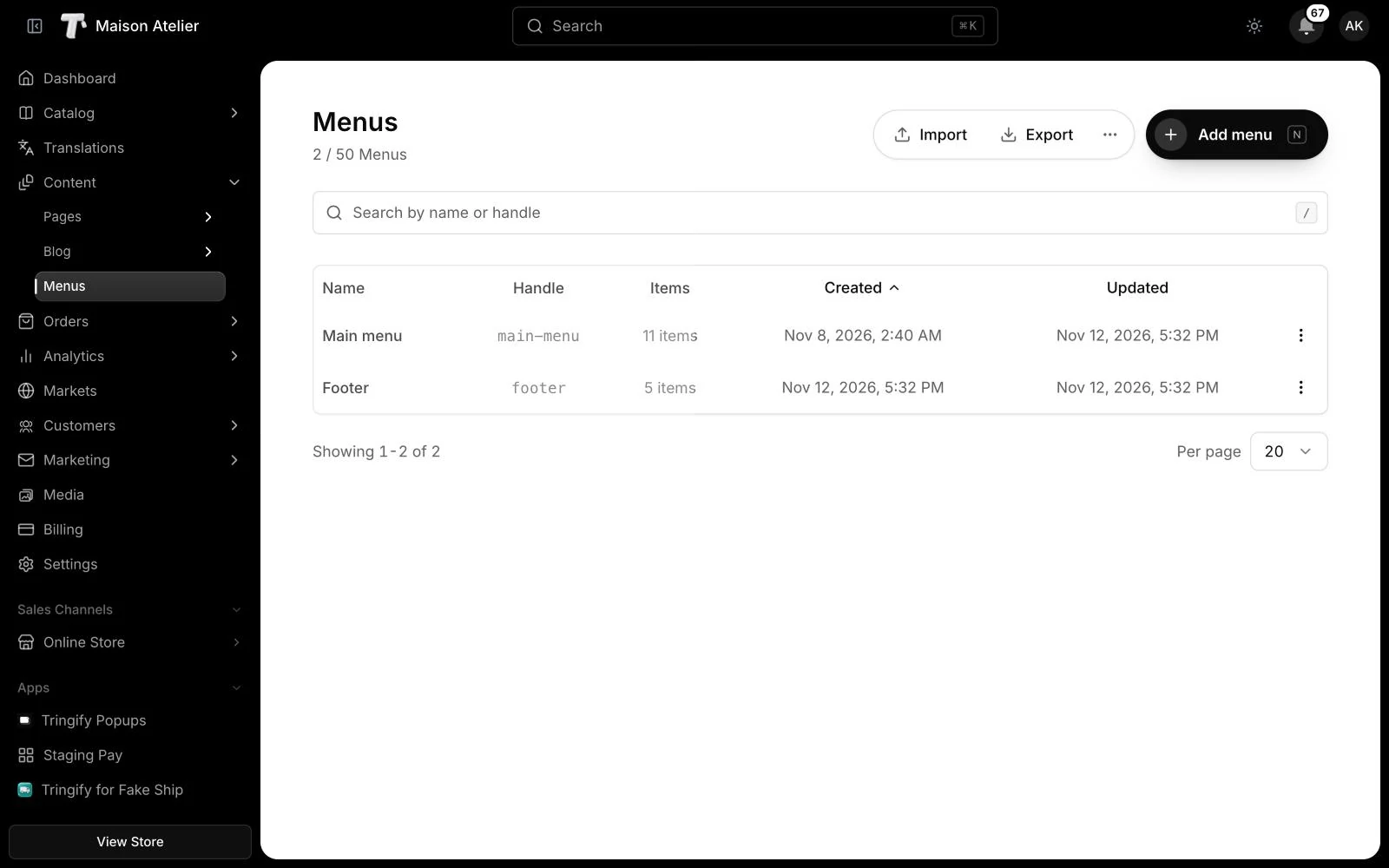
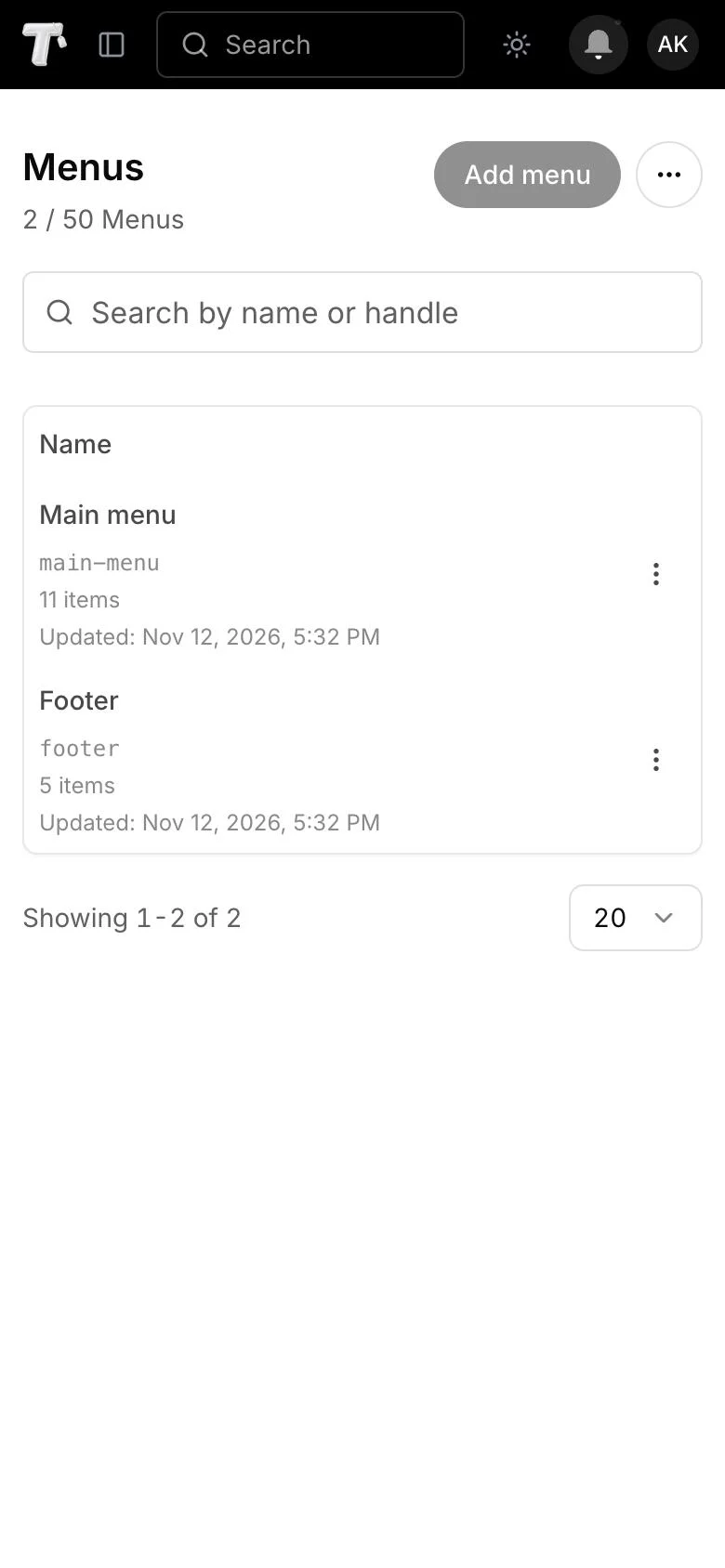
Content > Menus holds every menu in your store. Give each one a name you'll recognise, such as Main menu or Footer. Its handle is how your theme knows which menu to show where.

Handles made for you
Leave the handle blank and it's built from the name. If another menu already uses it, -2 or -3 is added. A handle you type must be lowercase words joined by hyphens.
Old handles keep working
Change a handle and the old one stays reserved for the same menu, so your theme settings keep working. A menu keeps up to 20 old handles.
Menus on every plan
The number of menus depends on your plan.
Import and export
Import new menu items from a CSV file, update existing ones, or export them. Jobs run in Bulk jobs, where you can check the results.
Delete with a warning
If your theme uses a menu, the delete confirmation lists each place first, such as the header or footer.
One structure, every language
Menu names and handles stay the same in every language. Item titles are translated.
Menu items
Links that follow your store
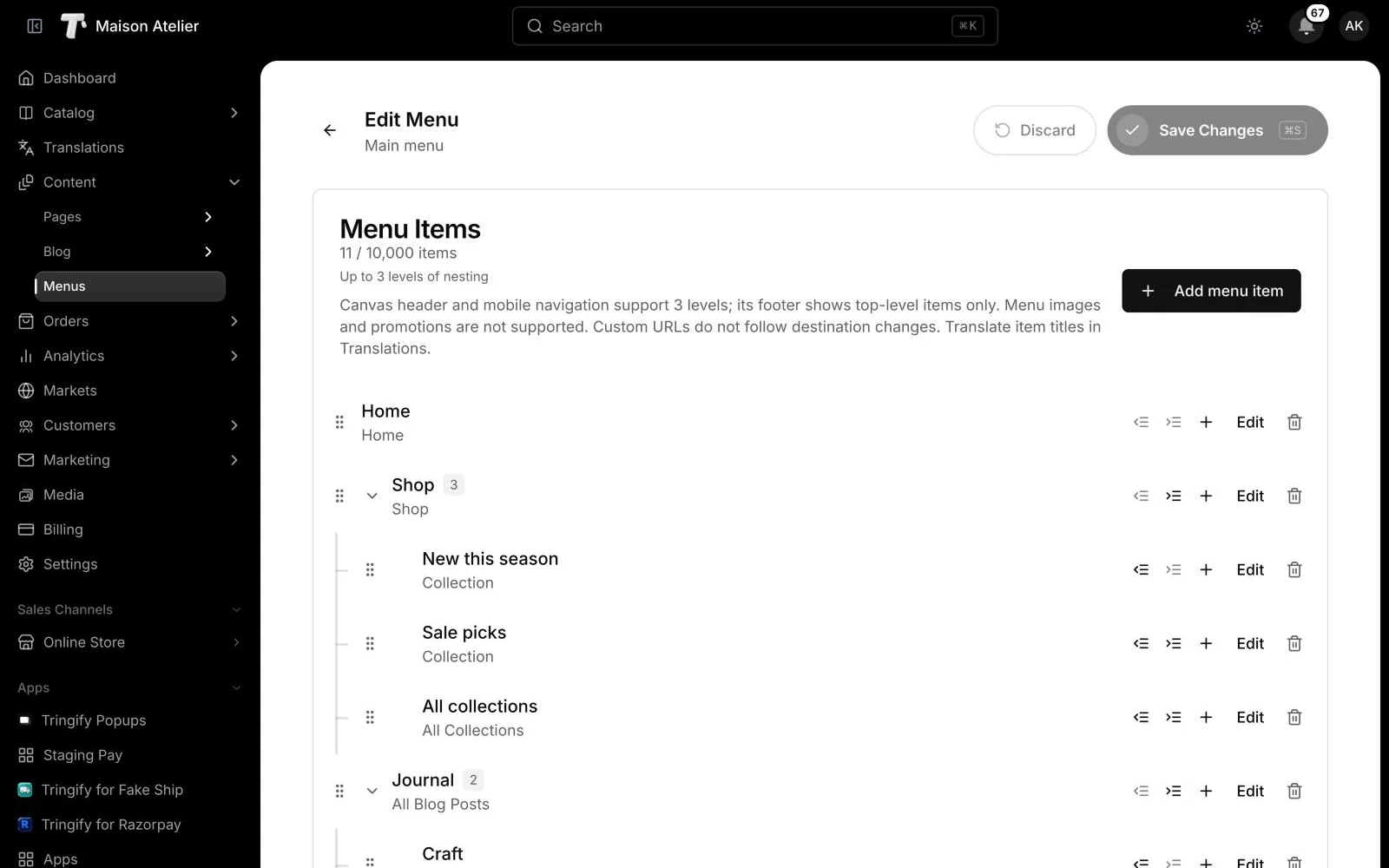
Add an item, choose what it links to and pick the product, collection, page or post from your store. The link stores the item itself, so it keeps working when you rename it or change its slug.
Link to anything in your store
Products, categories, collections, pages, blog posts, blog categories, vendors, brands and policies, picked from a search.
Pages every store has
Home, Shop, Cart, Wishlist, My Account, Search, Track Order, and the lists of all categories, collections, vendors, brands and blog posts.
Up to three levels
Drag items to reorder them, or nest them in and out. A menu holds up to 10,000 items, with up to 500 under one parent.
Headings and custom links
A label is a heading with no link that groups the items under it. A custom URL can be a path on your store, another website, an email address or a phone number.
Open in a new tab
Choose for each item whether it opens in the same tab or a new one.
Ready before launch
Link to content that isn't published yet. Shoppers don't see the link until it's published.
Upkeep
Menus that stay tidy
Every save is checked against your store, so a menu never points at content that doesn't exist. When content goes, its links go with it.
Deleted content
Before you delete a product or page, its confirmation shows what changes in each menu. Afterwards, links to it are removed, and an item with children becomes a label so its dropdown stays.
No dead links
Until that cleanup finishes, storefronts already leave out links to deleted content.
Safe with a team
If someone else saves the menu after you opened it, your save stops and asks you to reload, so nobody's changes are lost.
Large menus
Menus with more than 500 items load level by level, with a search that shows where each result sits.
Shown by your theme
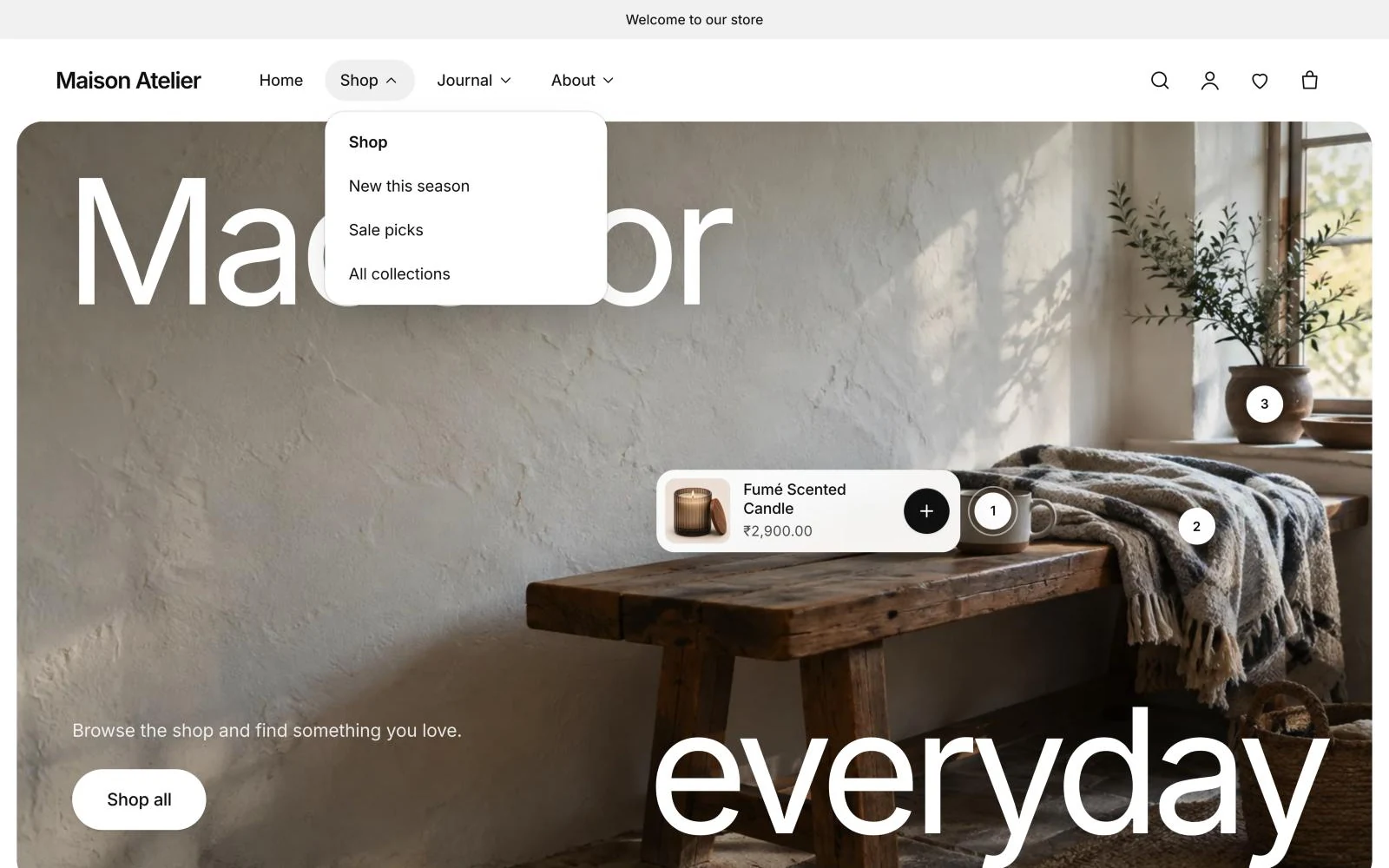
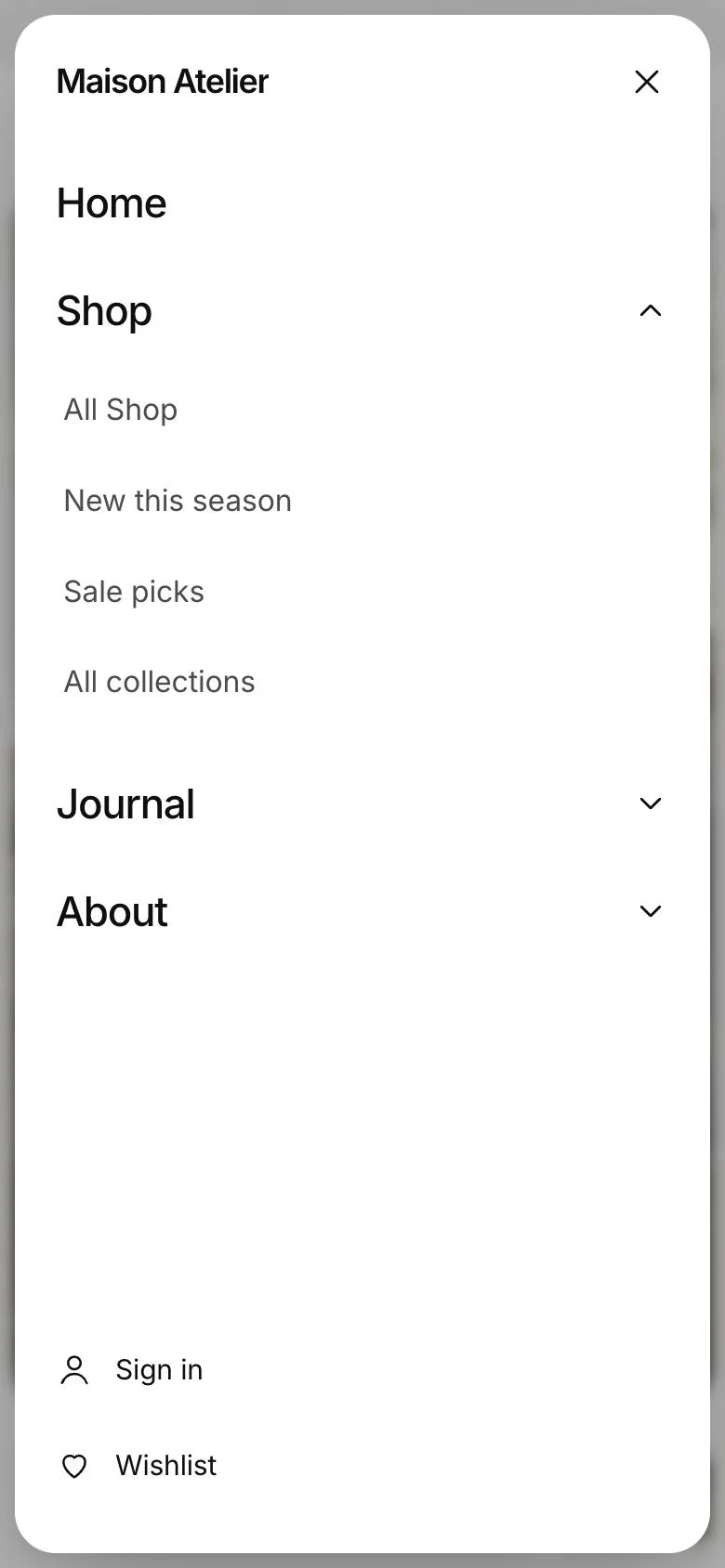
Choose a menu in your theme's settings. Canvas shows three levels in the header and mobile navigation, and top-level items in the footer.
Translated titles
Translate item titles in Translations. Shoppers in another language see them while the menu stays the same.