Pages
Every page your store needs, beyond the products.
Write About, shipping, FAQ and contact pages in Store Admin, give them a template from your theme, and publish when they’re ready.
Pages
Every page, in one list.
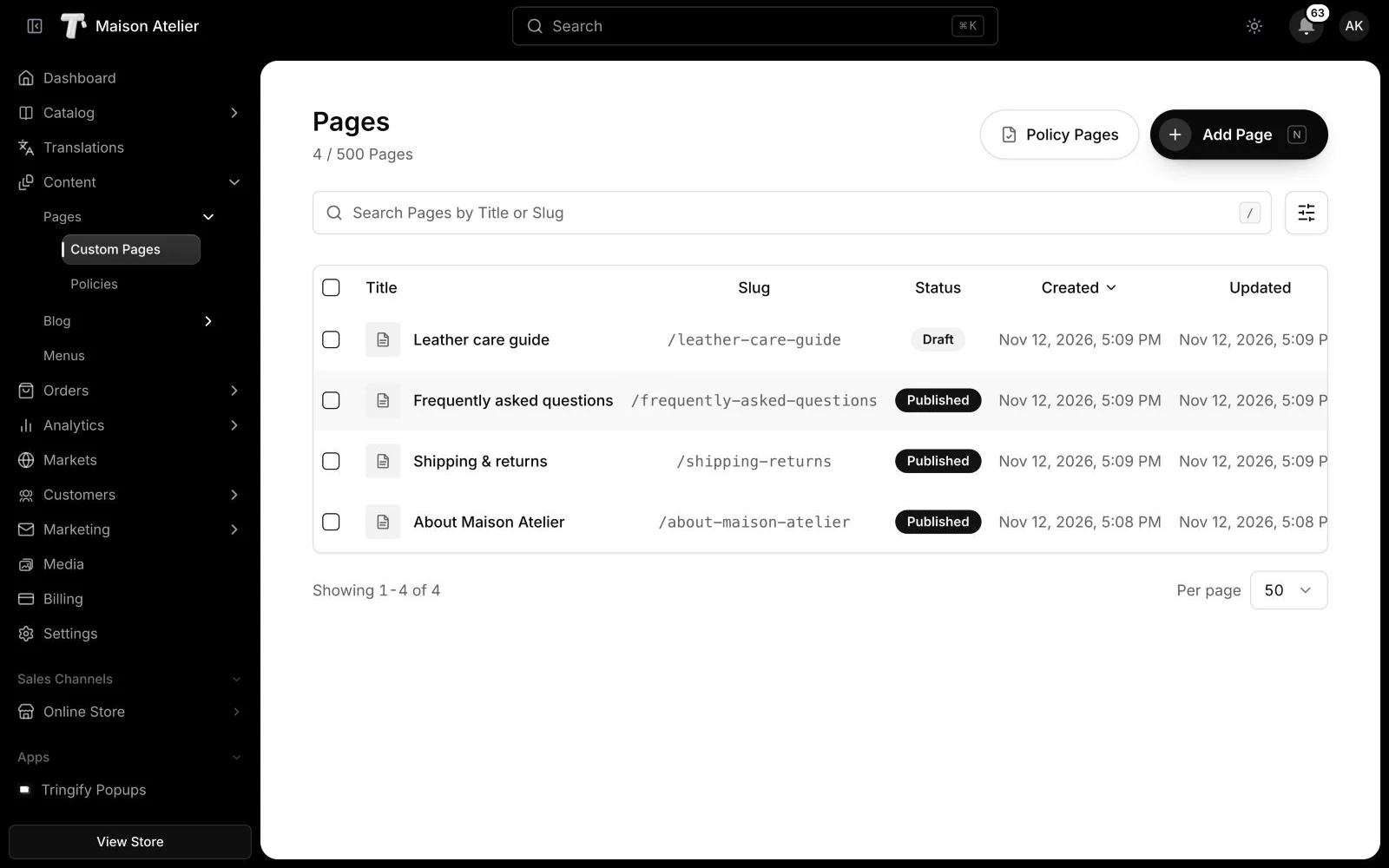
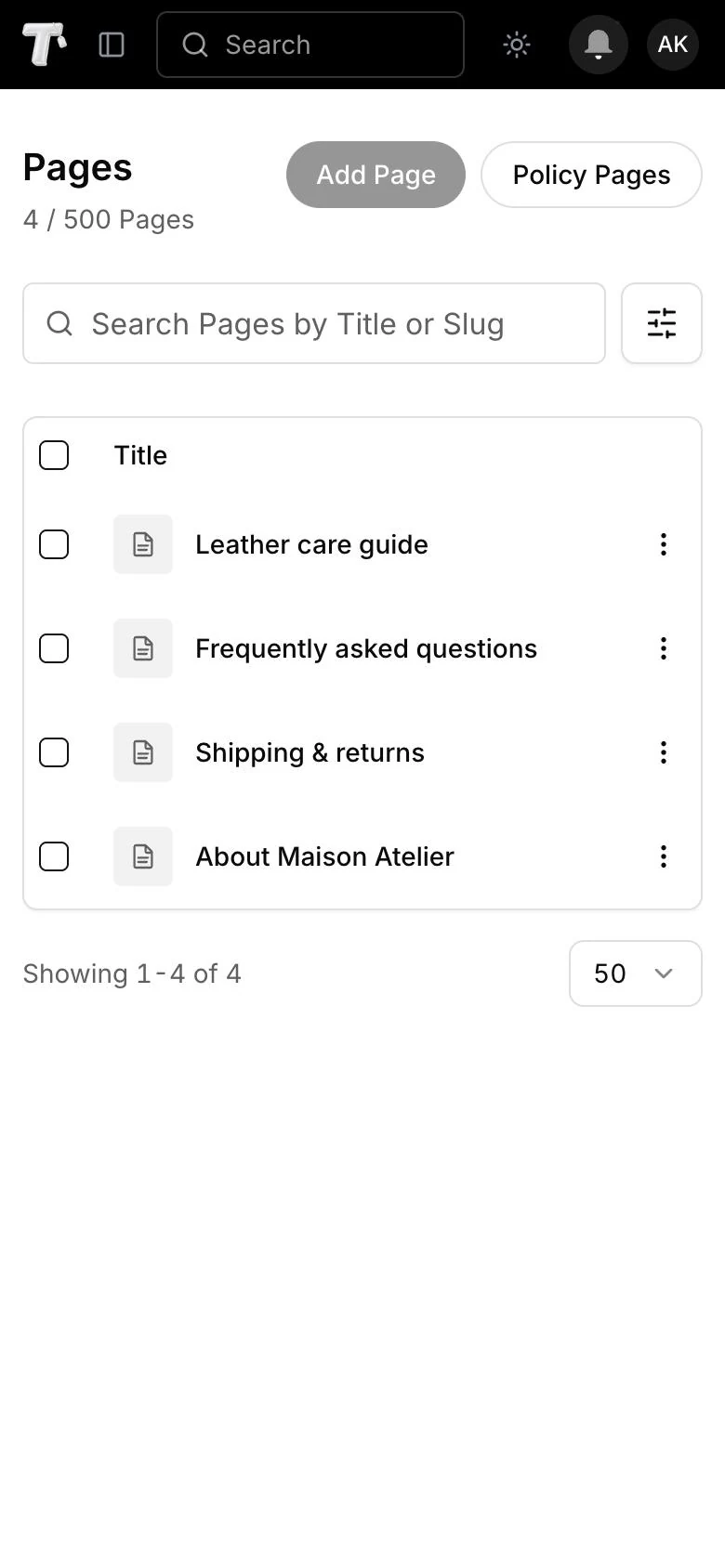
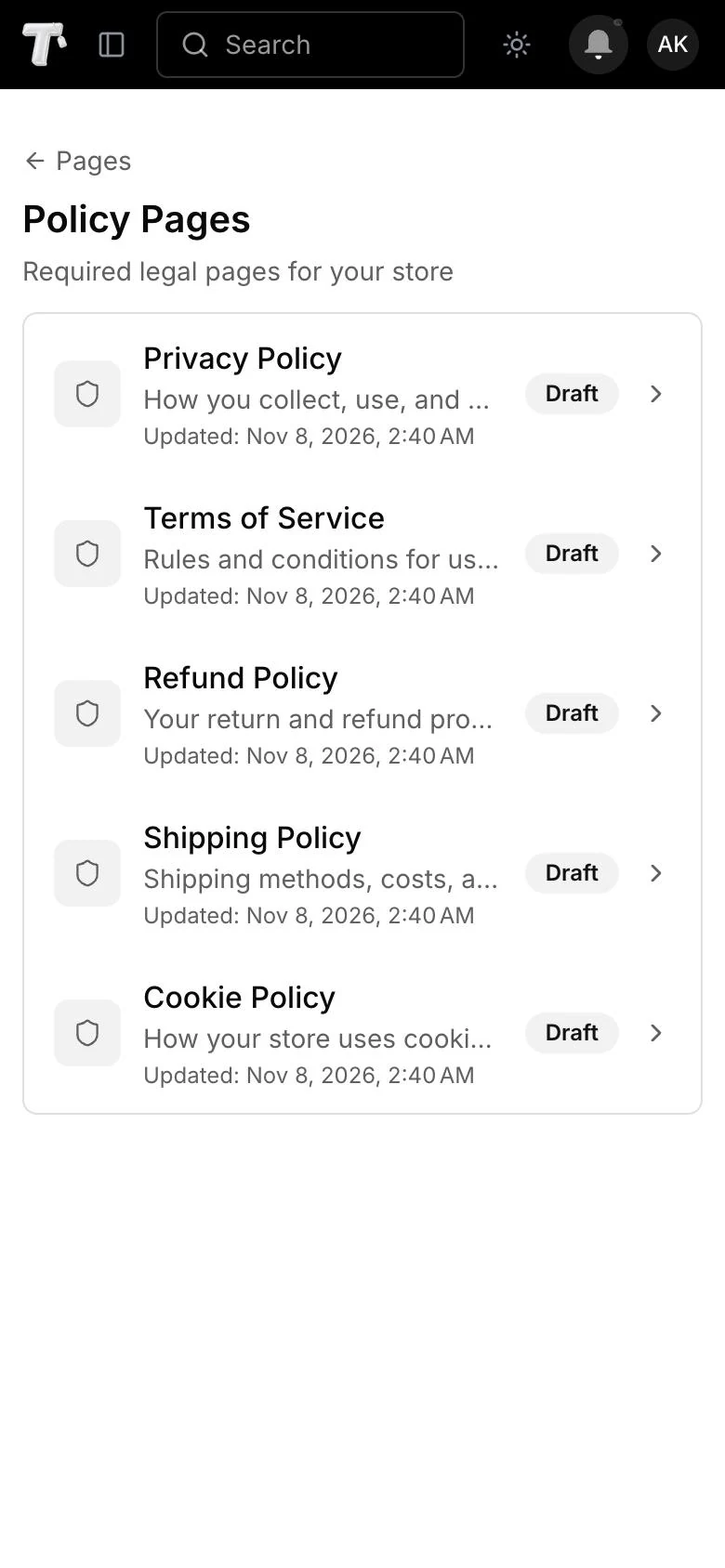
Content › Pages in Store Admin lists your custom pages with their slug, status and dates. Search by title or slug, filter by status, and open a page to edit it.

A slug of its own
Leave the slug blank when you create a page and Tringify makes one from the title. Titles can repeat; each slug is unique among your pages.
Pages on every plan
Each plan includes a set number of custom pages.
Delete with care
Delete one page or select several. If a menu links to a page, you see which links will be removed before you confirm.
Your five policies
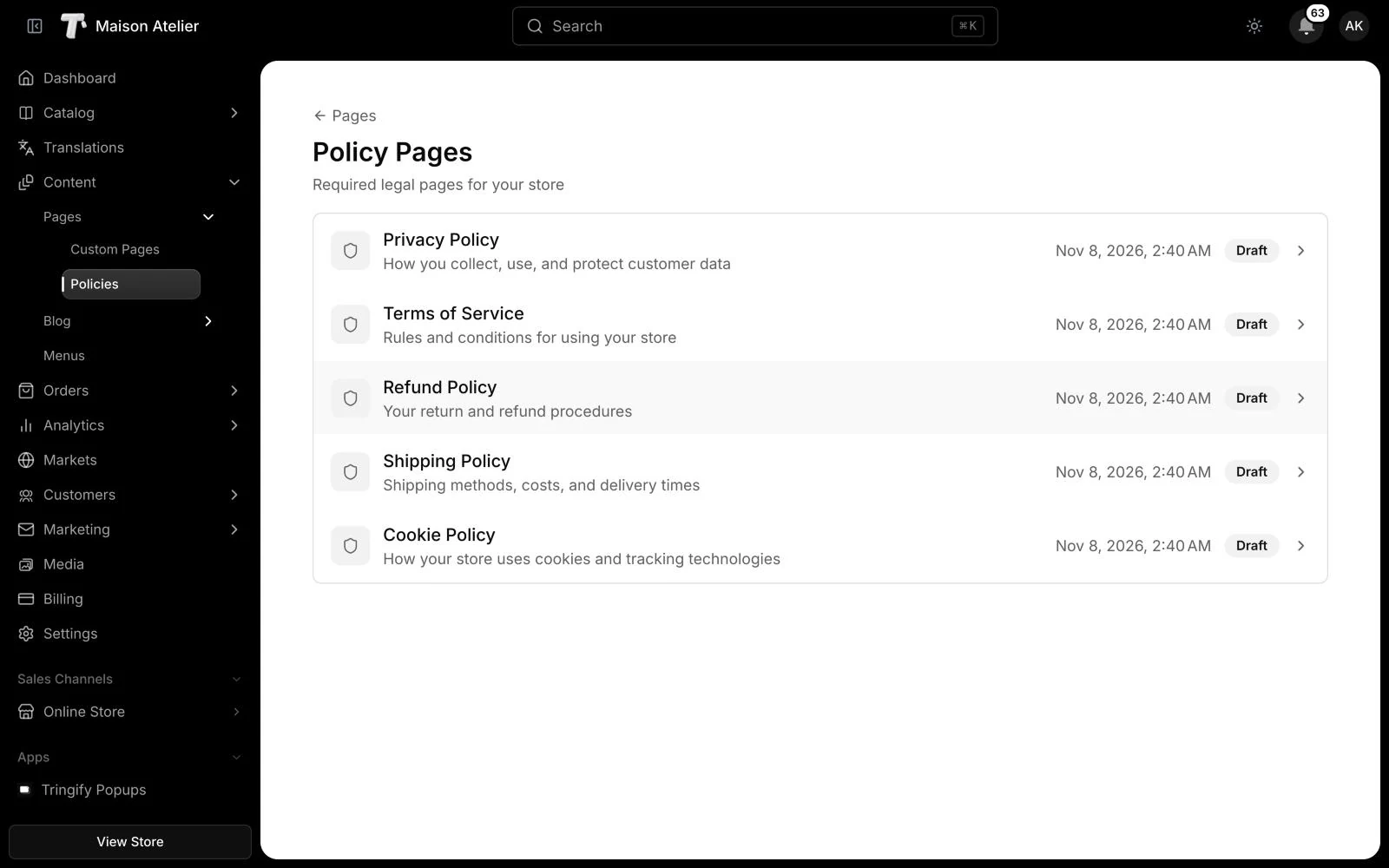
Privacy policy, terms of service, refund, shipping and cookie policies, legal notice, contact information and terms of sale sit under Pages › Policies, with the same editor, statuses, SEO and translations.
A source CSV
Download your pages as a source CSV, and restore them from that file later.
With any AI
Add and edit pages from any AI assistant through MCP, including their SEO, template and translations.
Editor
Write it, then see it on your store.
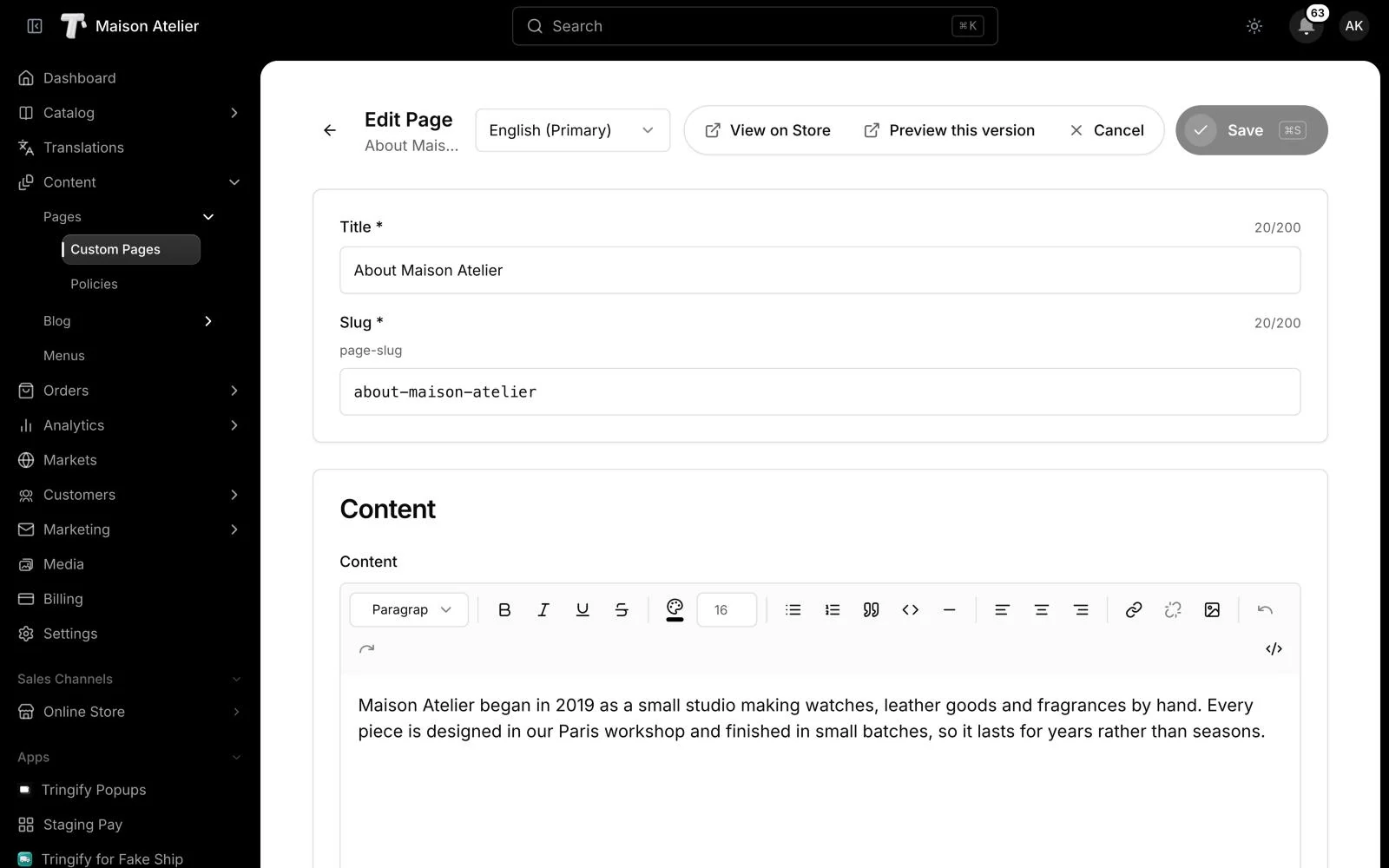
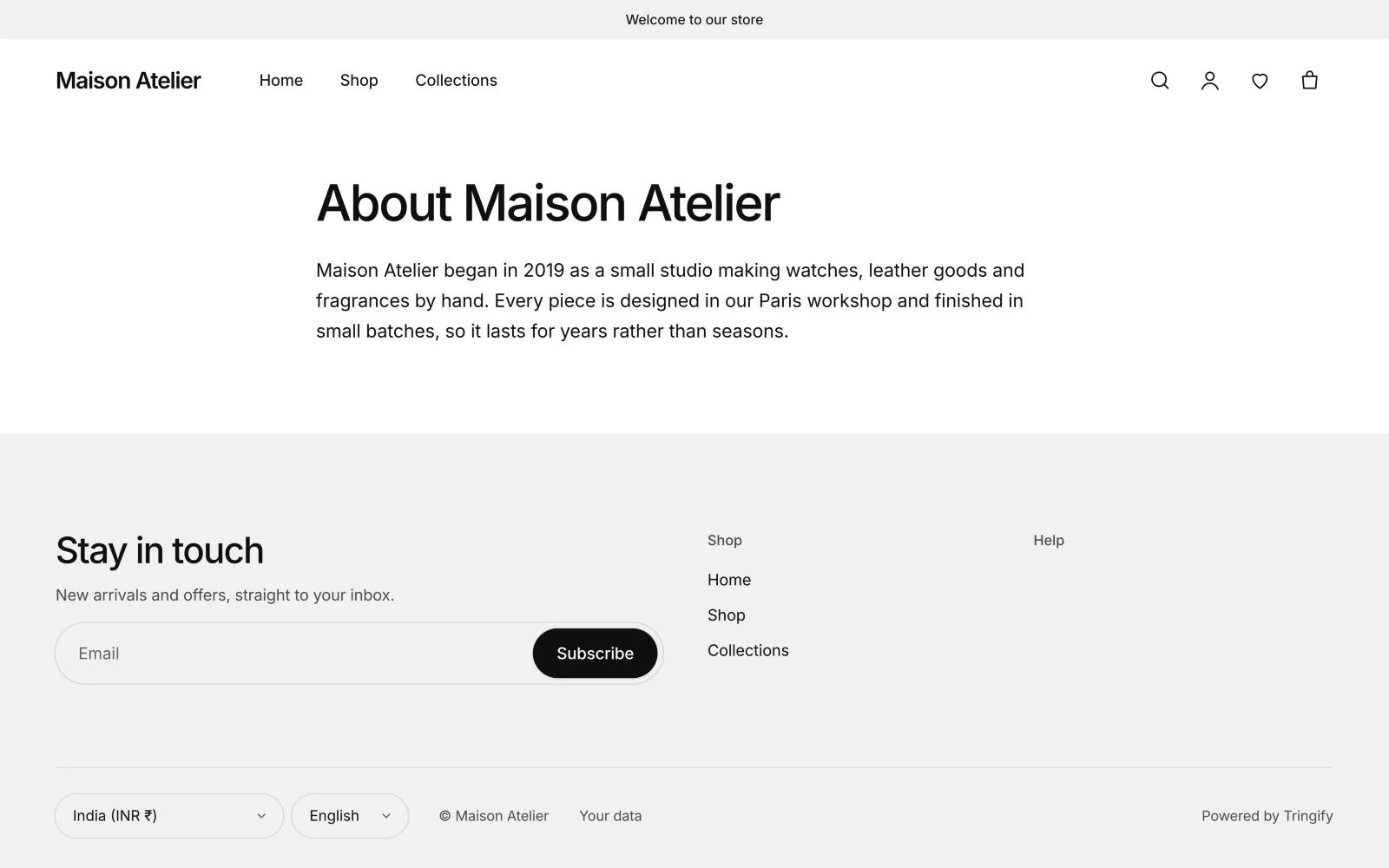
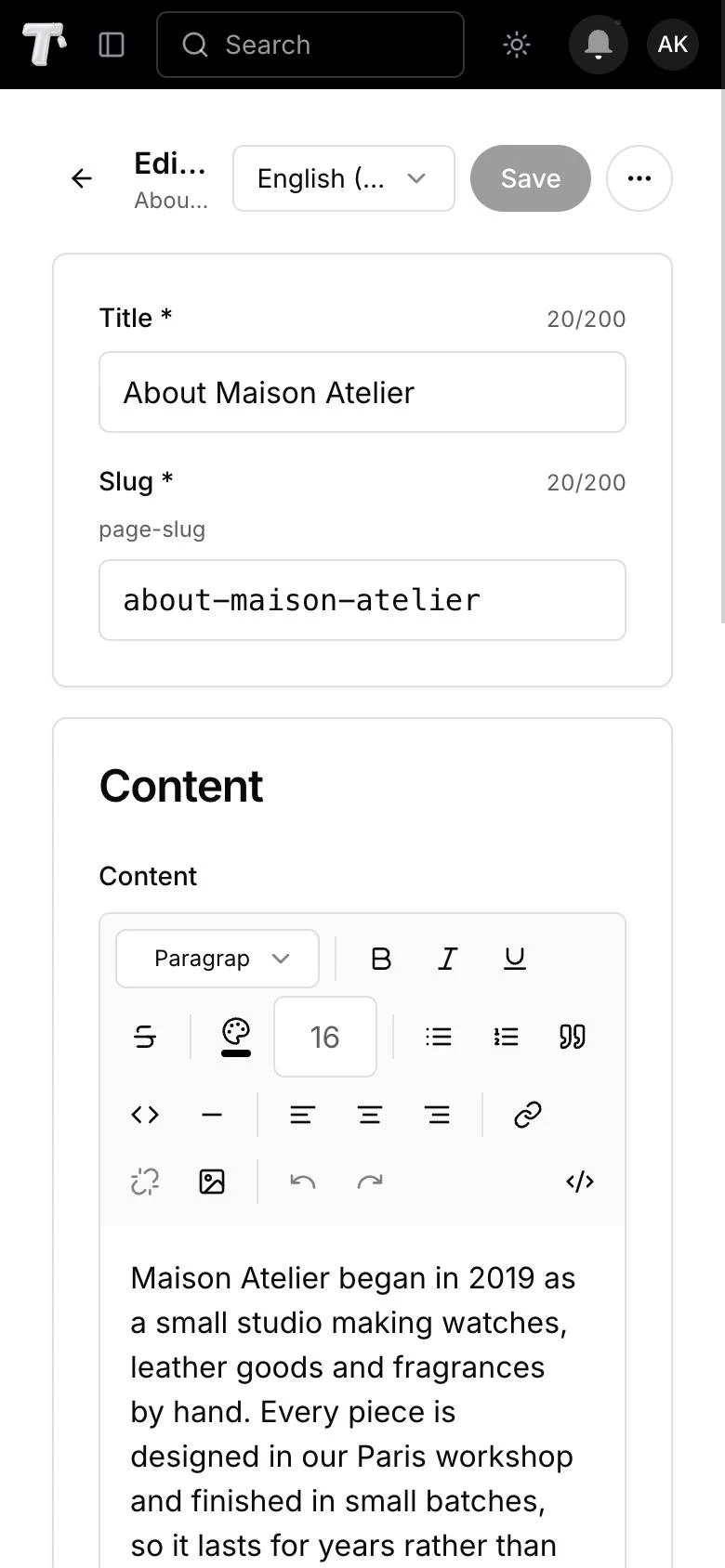
The page editor holds the title and slug, a rich text editor, SEO, status and template. Your storefront shows the saved page; drafts stay hidden, and Preview this version opens a preview link that expires.
A rich text editor
Paragraphs and three heading levels, bold, italic, underline, strikethrough, text colour and size, lists, quotes, code blocks, dividers, alignment and links.
Images from Media
Insert images from your media library, then float them left or right so text wraps around them, or centre them.
HTML when you want it
Edit HTML Source shows the page’s markup. Content is cleaned to safe HTML when you save.
Templates from your theme
A page uses the default page template of your storefront’s active theme unless you choose another. Themes add their own, such as Contact; some also have About or stockist pages.
Rename without breaking links
Change a slug and Create URL redirects for changed slugs is ticked for you, so old links land on the new address.
Drafts stay hidden
Draft pages aren’t visible to customers and stay out of your sitemap. Switch to Published when the page is ready.
Search & sharing
Ready for search and sharing.
Each page has an SEO title and description, a search visibility setting and a social image. Leave them empty and your storefront uses the page itself.
Sensible fallbacks
Without an SEO title, search engines get the page title; without an SEO description, the start of the page content.
Hide a page from search
Hide from search results adds a noindex tag and keeps the page out of your sitemap. Anyone with the link can still open it.
A picture for every share
The social image is what link previews show when someone shares the page.
In your sitemap
Published pages that aren’t hidden from search are listed in your store’s sitemap at their canonical address.
Structured data
Each page tells search engines it is a web page, with a breadcrumb back to your home page.
Found by shoppers
Your storefront search includes pages, and your store’s llms.txt lists them for AI assistants.

Languages
In every language you sell in.
Translate a page’s title, slug, content, SEO title and SEO description into each of your store’s languages, from the page editor or from Translations.
A local address
A translated slug gives the page its own address in that language. Without one, the original slug is used.
See what’s out of date
Change a field on the original page and its existing translations are marked outdated, field by field.
Translate with AI
Fill a field with an AI translation, then check it before you save.
Or in bulk
Translate pages with a CSV per language, or run an AI translation job across many pages at once.
Fields of your own
Add structured fields to pages with metafield definitions in Settings. Themes can show them, and text values can be translated.