Gift Cards
Sell Gift Cards, issue your own, and follow every balance.
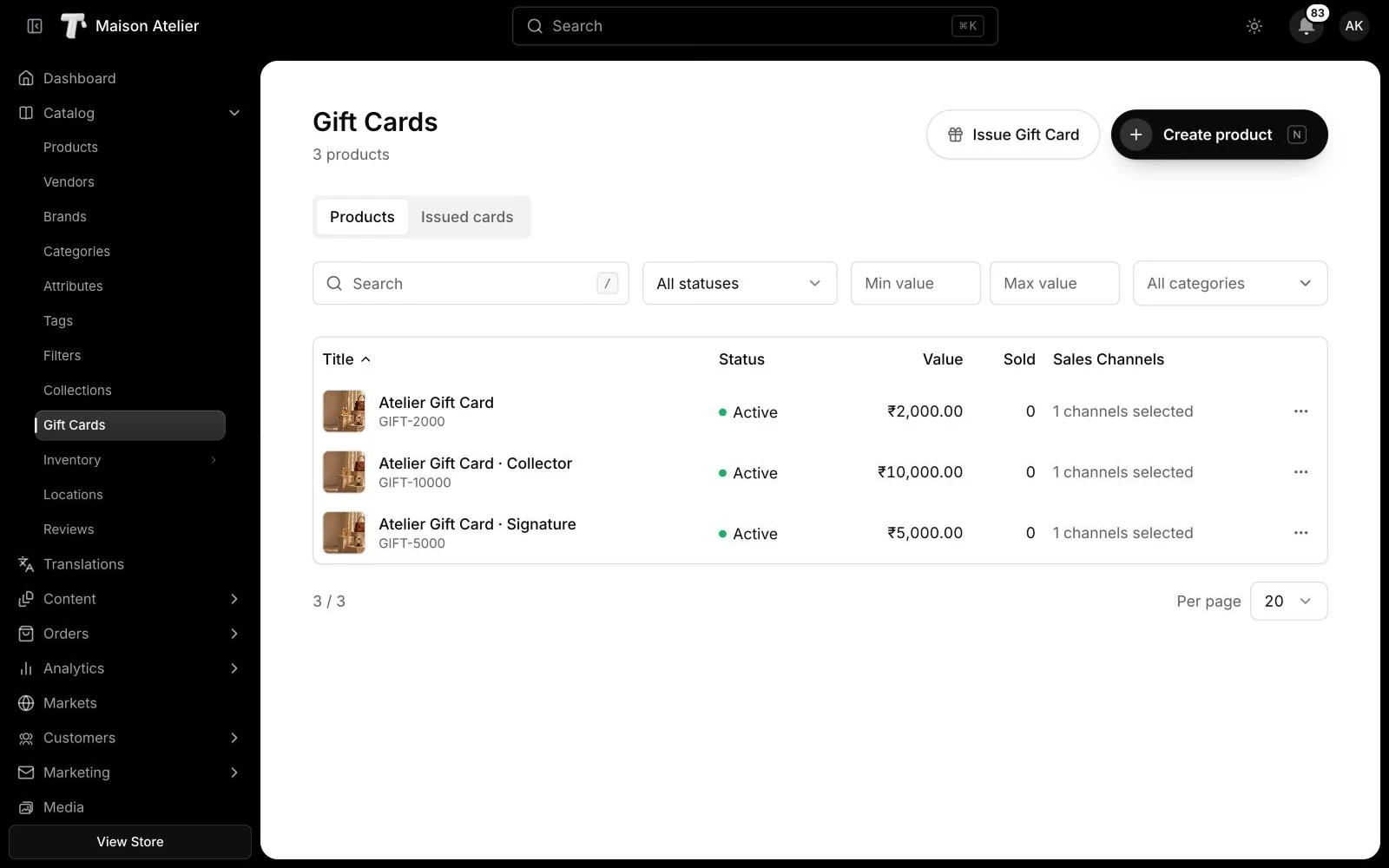
A Gift Card product issues a card when its order is paid. You can also issue a card from Store Admin, share the code or send it, and see every redemption, refund and status change on the card itself.
Products
A Gift Card is a product you sell.
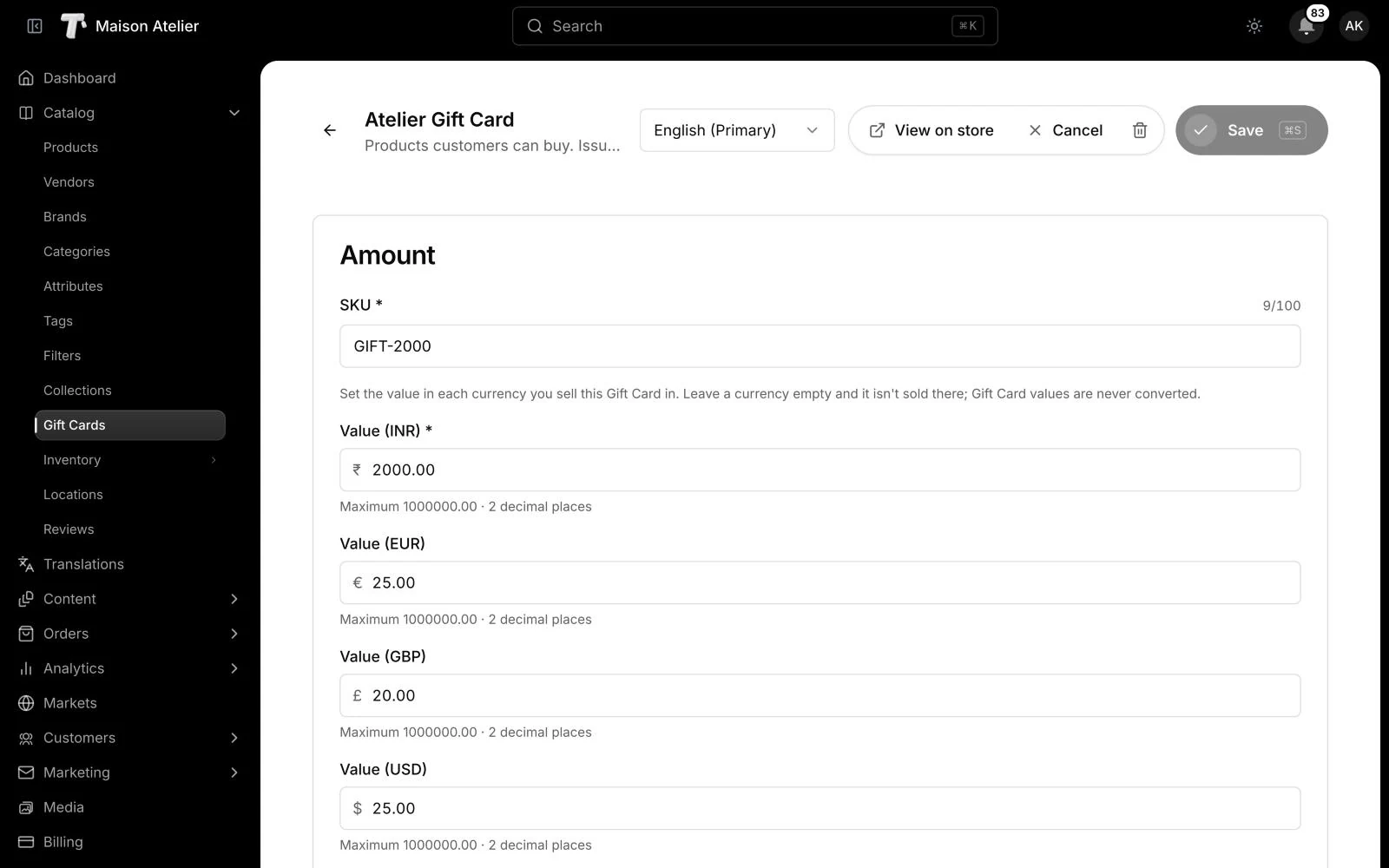
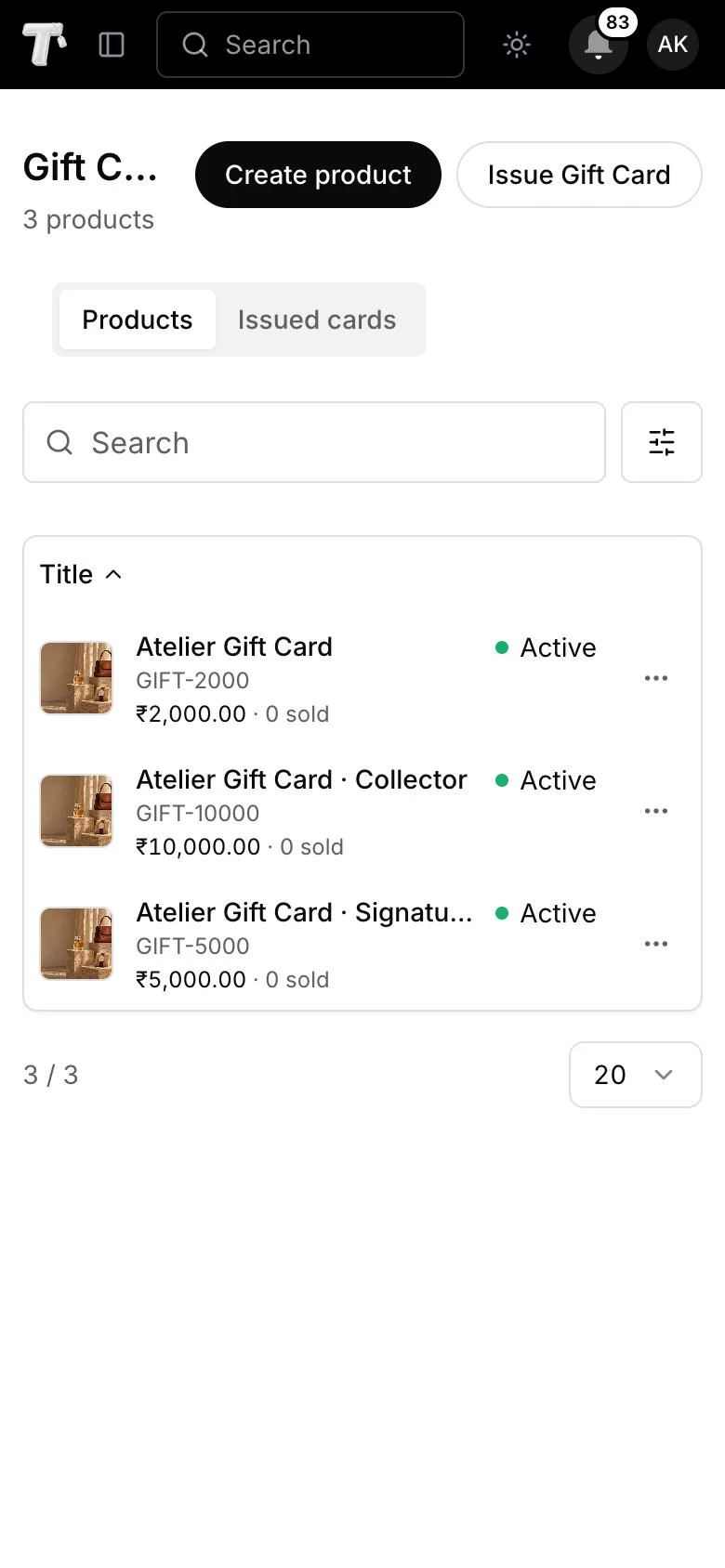
Create a Gift Card product under Catalog > Gift Cards, give it a value in each currency you sell it in, and publish it to your sales channels like any other product. When an order for it is paid, a card is issued with that value.

One value per currency
The price you enter for a currency is the card’s value for shoppers paying in it. Gift Card prices are never converted, and shoppers paying in a currency without a value don’t see the product.
A currency-neutral name
The title is translated per language, not per currency, so Store Admin warns you when it names a currency. Use a name such as Gift Card.
Issued once paid
A card is issued only after its order is paid, then sent straight away or at the delivery time the shopper chose. Until then it is Scheduled and can’t be redeemed. Test orders don’t issue cards.
Bought as a gift
On the product page shoppers buy the card for themselves or for someone else, with the recipient’s name, an email address or phone number, an optional message and an optional later delivery time.
Nothing to ship
Gift Cards never ship and aren’t taxed. A cart with only Gift Cards skips the shipping step, and cash on delivery isn’t offered for it.
Locked once ordered
Once an order includes the product, even before payment, its prices and SKU are locked and it can’t be deleted. Archive it and create a new product for a different value; issued cards keep their balances.
Issue
Issue a card yourself.
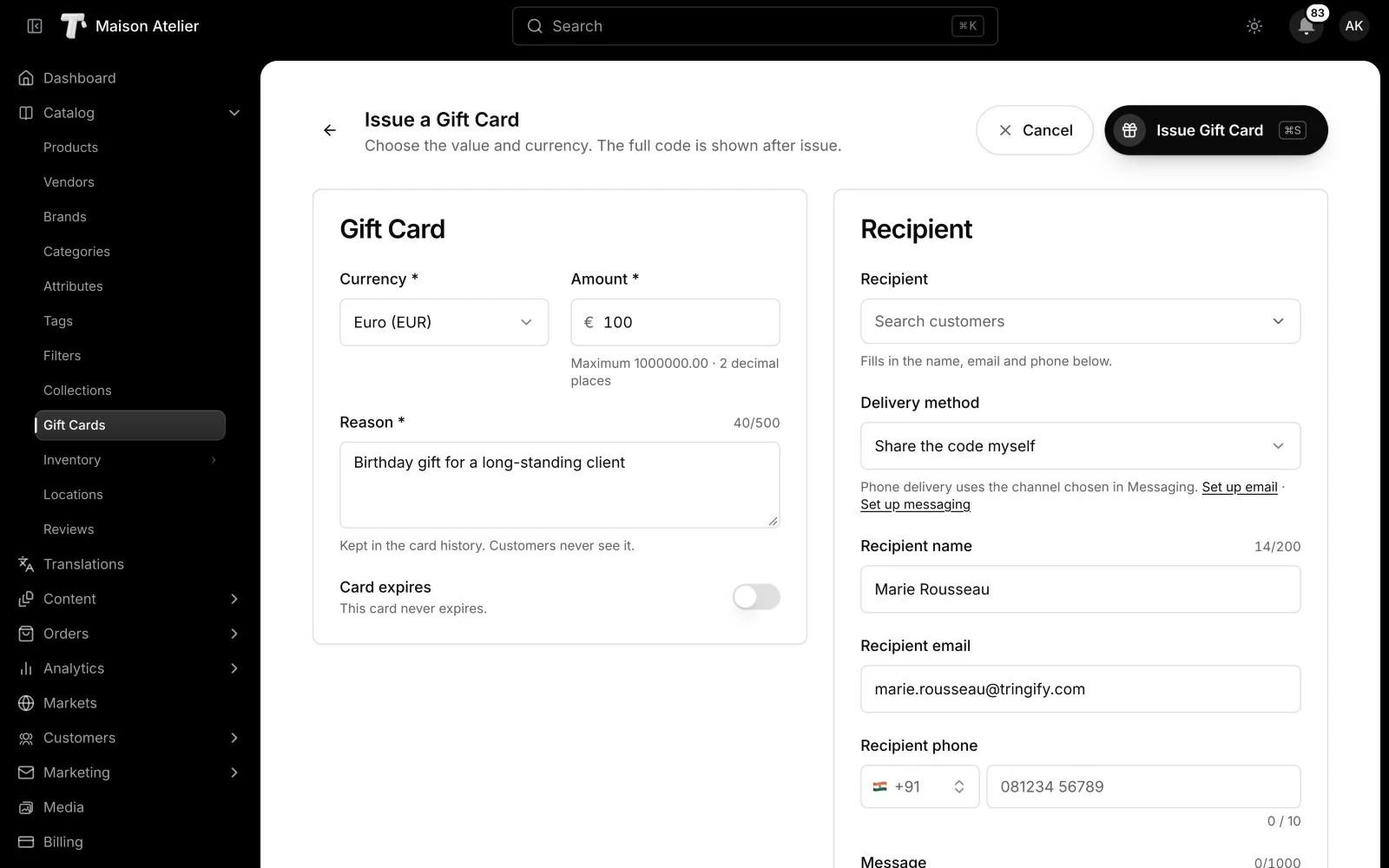
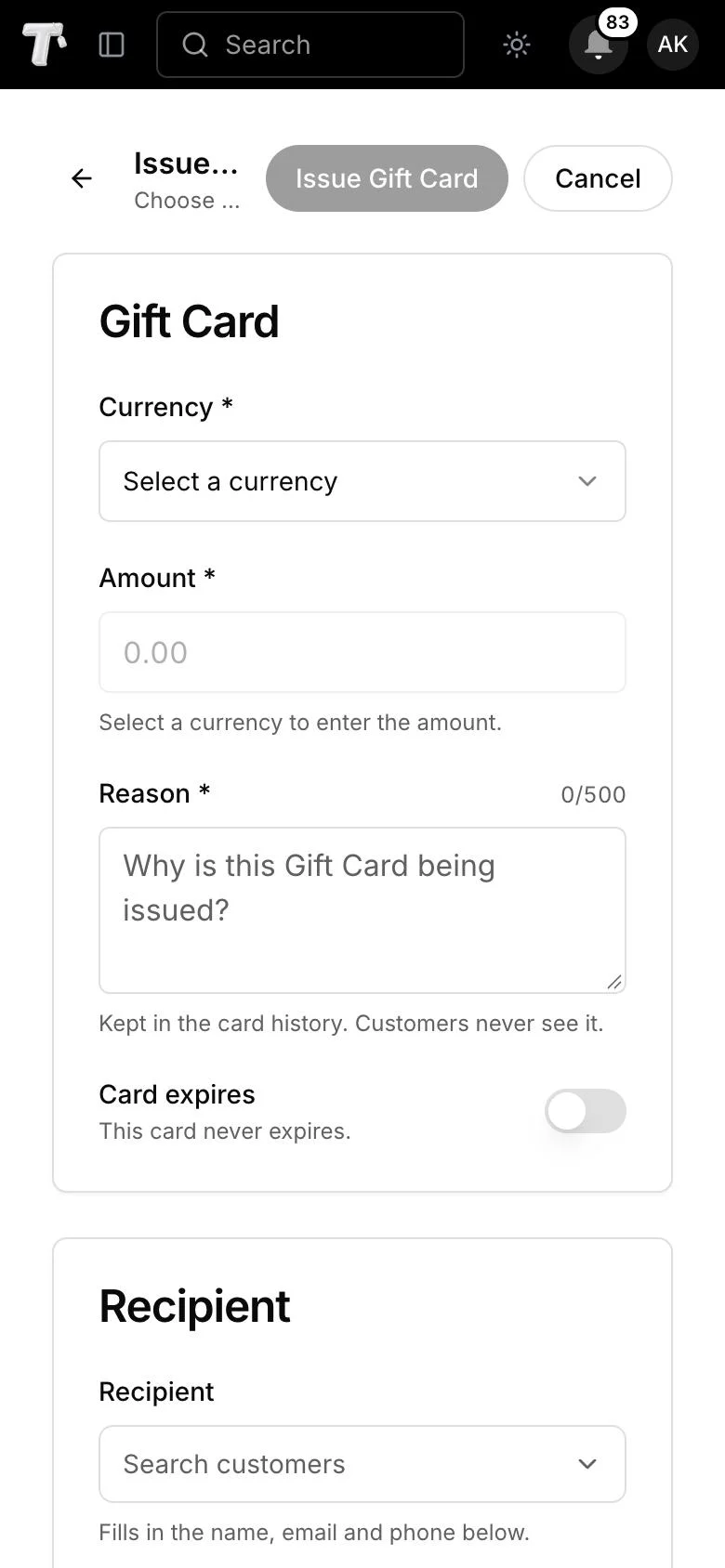
For a goodwill gesture, a prize or a replacement, issue a card from Issued cards. Choose the currency and amount, record why, and decide who receives it and how.
The code is shown once
After you issue a card, its full code is shown once for you to copy. From then on Store Admin shows only its last four characters.
No second card by mistake
If issuing fails before you see the code, retry from the same form without changing anything. Within an hour you get that card’s code instead of a second card.
A reason on record
Every card you issue needs a reason. It is kept in the card history, and customers never see it.
Your currencies
Cards you issue use your base currency or another enabled currency. Cards bought in an order keep the order’s currency.
Delivered your way
Share the code yourself, send it with the Gift Card Delivery email, or send it by SMS or WhatsApp on the channel chosen in Messaging, once the template and sender are set up.
Scheduled delivery, optional expiry
A future delivery time keeps the card Scheduled until it is sent. An expiry is optional, and it must be later than the delivery time.
Issued cards
Every card and its balance.
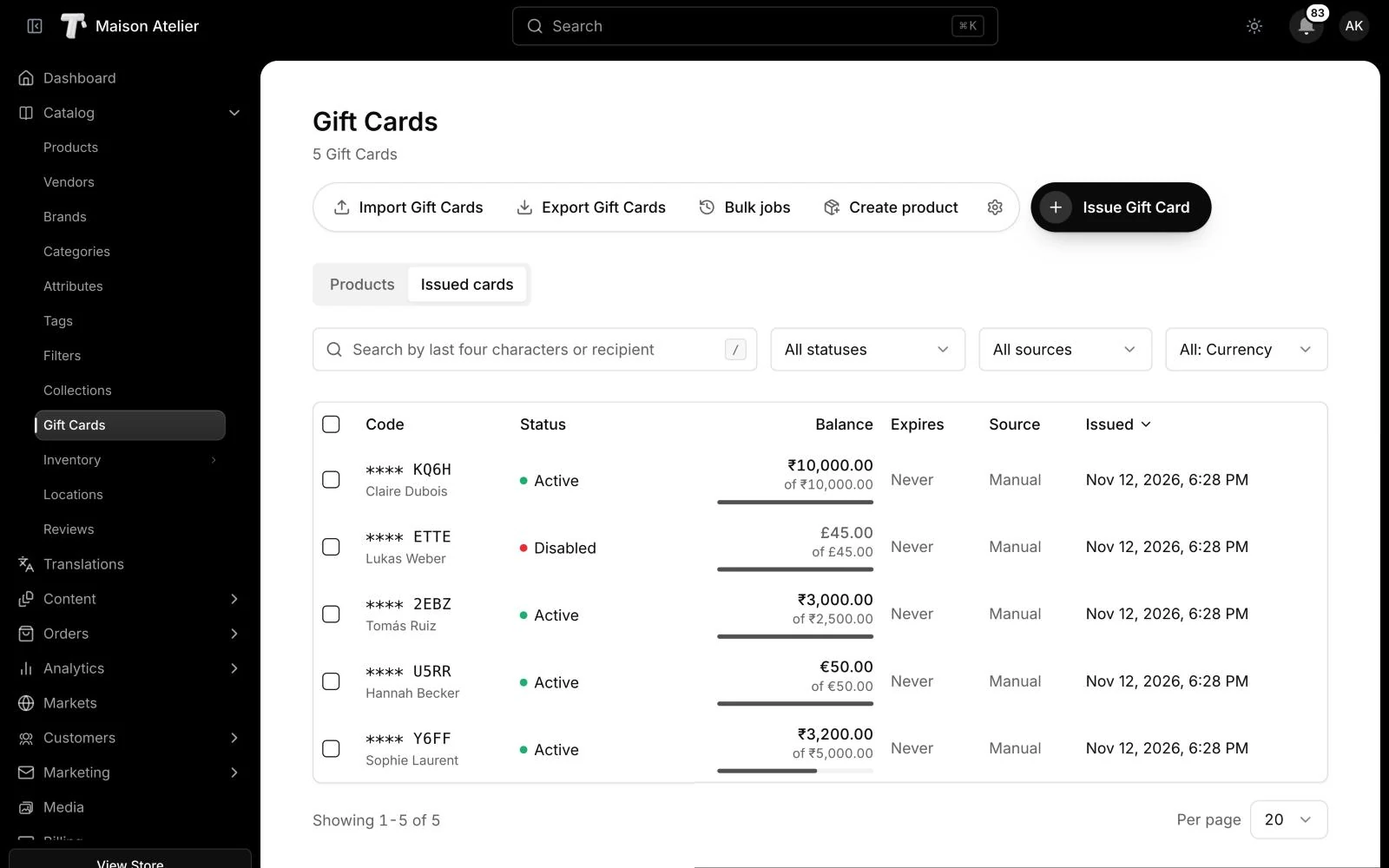
Issued cards lists every card with its status, its balance against its initial value, its expiry and whether it came from an order or was issued by hand. Open a card to see its whole history.
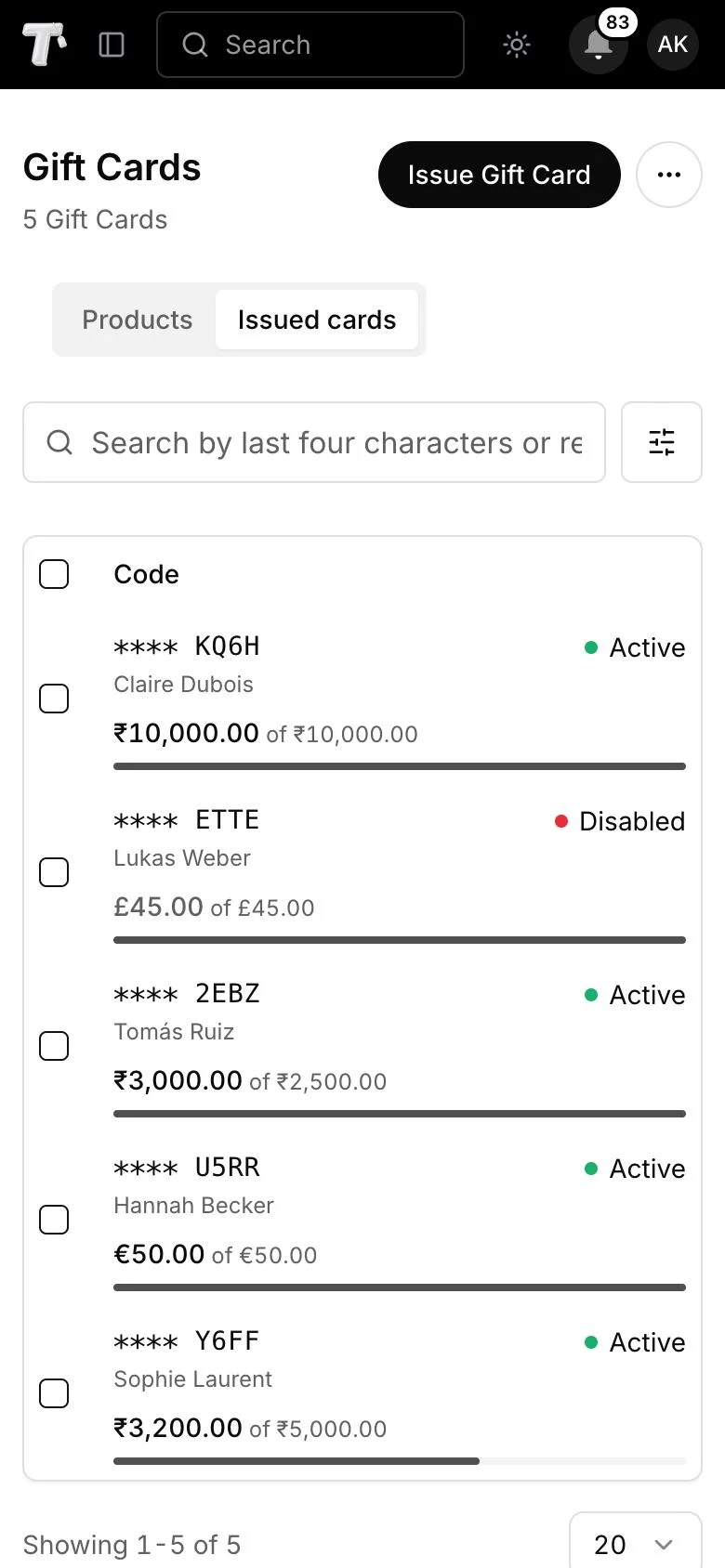
Find any card
Search by the last four code characters, the recipient’s name or email, and filter by status, source and currency.
A status for every stage
A card is Scheduled until it is delivered and Active while it can be spent. Depleted, Expired and Cancelled cards can’t be spent; Refund pending locks a card while its money goes back.
Pause or cancel
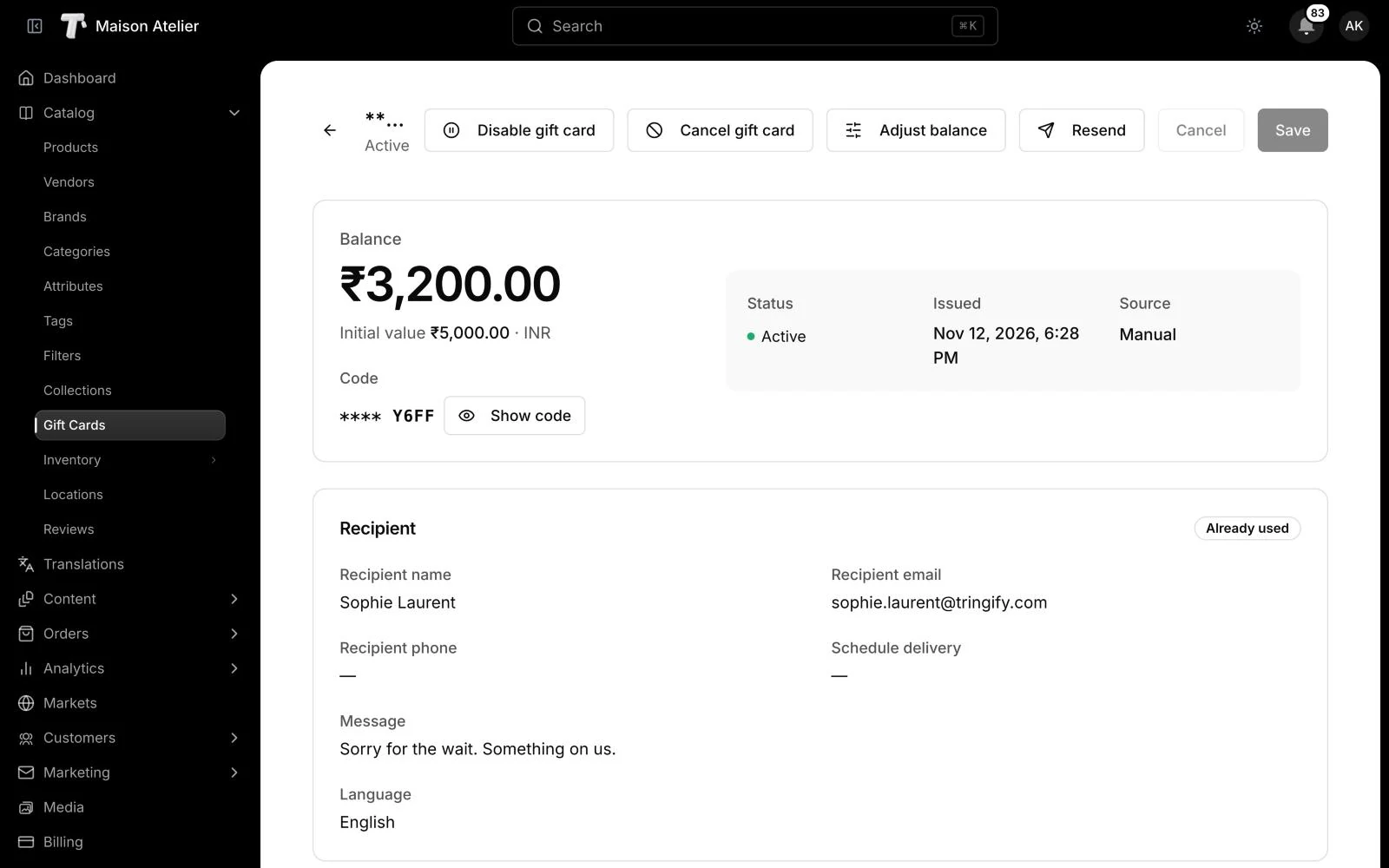
Disable a card to pause redemption without removing its balance, then activate it again later. Cancelling revokes the remaining balance for good. Each change needs a reason, and you can activate or disable many cards at once.
Three histories
Balance history lists issues, redemptions, refunds, reversals and adjustments. Card history lists status and detail changes. Delivery history lists every email or message. Newest first.
Retry a failed delivery
Correct the recipient, sender or template, then retry. A retry sends the same card and adds no value. Recipient and schedule are locked once a message is queued or sent.
Store API and webhooks
Apps can list, issue and update cards through the Store API, and receive webhooks when a card is created, updated, redeemed, refunded, expires or is cancelled.
Checkout
Spent at checkout, refunded to the card.
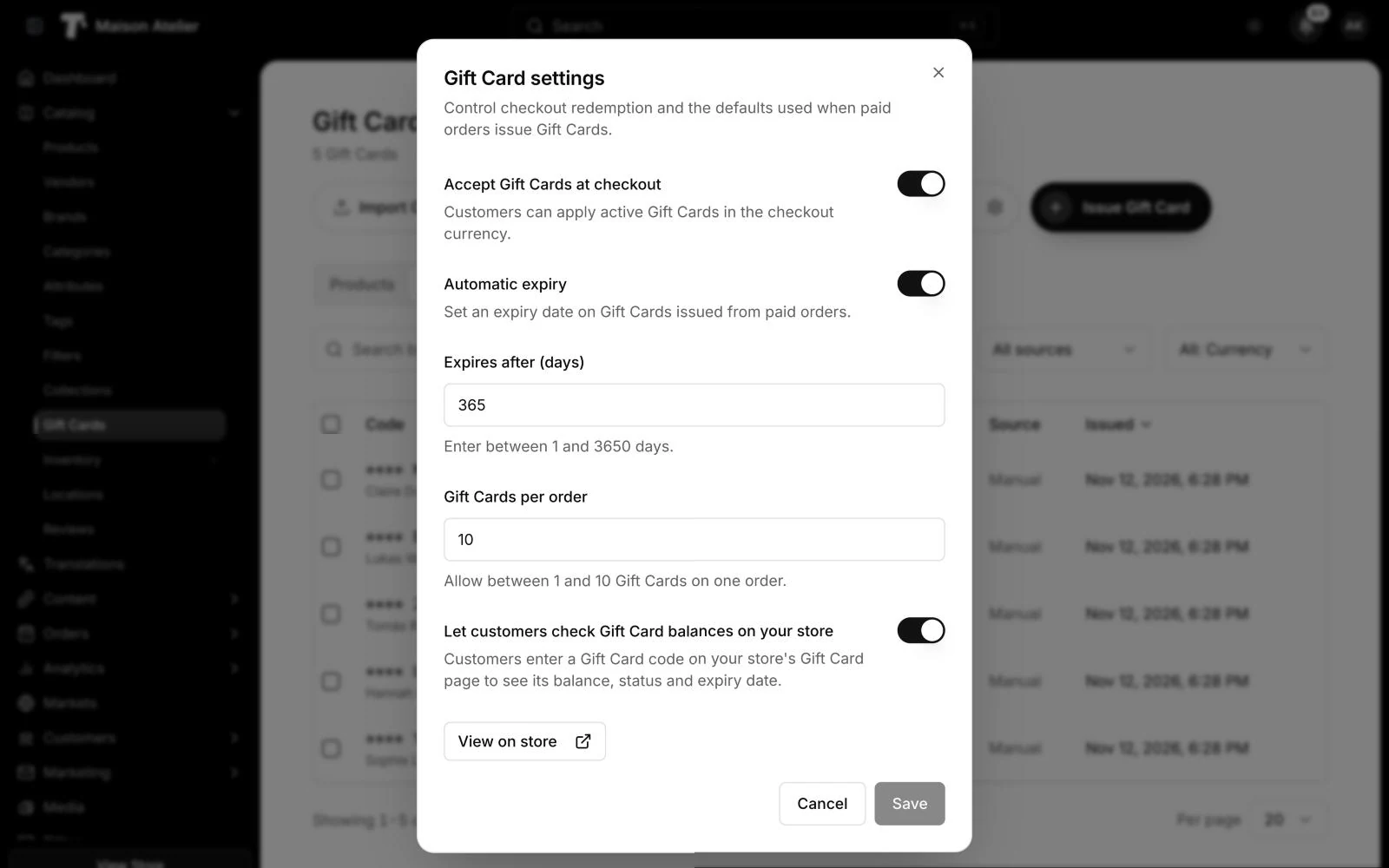
Gift Card settings decide whether checkout accepts cards, how many cards one order can use, and whether cards from paid orders expire automatically.
In the checkout currency
Customers apply active cards in the checkout currency. Each card holds its value in one currency only.
Before Store Credit
Gift Cards apply first, up to their balance and the amount payable. Store Credit then covers what’s left, and the chosen payment method collects any remainder.
The rest stays on the card
Whatever isn’t spent stays on the same card until it is used up, expires or is cancelled.
Refunds back to the card
Refund an order paid with a Gift Card to the original card and its balance is restored, as long as the card is still usable. Refunds to expired, disabled or cancelled cards are blocked.
Refund a card someone bought
Refunding an order that sold cards gives back each card’s unspent balance by default and cancels the card. A card not issued yet refunds its full price and is never created.
Automatic expiry
When it is on, cards from paid orders expire after the number of days you set, counted from delivery. Changing it doesn’t change cards that already exist.